







- 1:1 Design Prompting
- Acceptance Criteria
- Accessibility
- AI
- AI Workflows
- Component Library
- Component Thinking
- Design System
- Design Tokens
- Prompt Engineering
- Prompting
- Spec-Driven
- Vibe Coding
- Builder.io
- ChatGPT
- Claude
- CSS
- Figma
- HTML
- Lovable


I wanted to understand:
Can I build a pixel-precise App with Lovable AI, without losing control over my Figma design, structure, and logic?
🎯 My Goal
Build a functional mobile web app using Lovable AI and define a workflow that allows me to control the outcome. How should Figma be structured, what can be inferred from the export (and what cannot), and what instructions and rules are necessary to guide the AI toward reliable, reusable results?
👉 The Product
A simple word game, similar to charades, but limited to one-syllable hints.
Try it on your own, too, by opening two firm ones side by side
Long Story short 👇
👉 Long Version
01 Defining Product Logic with Natural Language
Instead of writing a full spec, I explored how far I could get using only natural language — starting a conversation to define the system step by step. Here’s a simplified version of that conversation 👇

👉 This was enough to define a working game structure — without writing a single formal specification. After just ~2 hours, I had a first working version of the game – a solid base to iterate on:
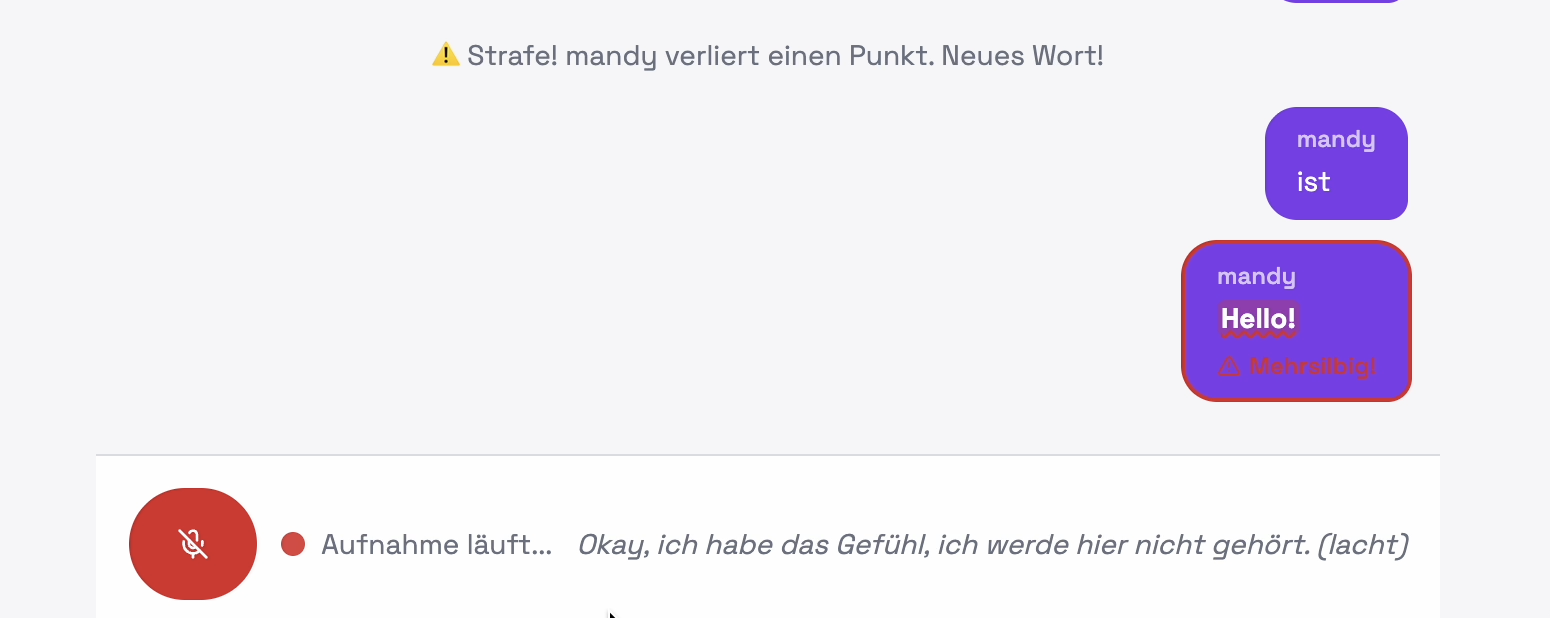
👉 Lovable is powerful for early-stage ideation & rapid prototyping
- It enables quickly validate flows, uncover needed states, and turn abstract ideas into tangible experiences.
During testing, it became clear that speech recognition wasn’t reliable enough — words were missed, misinterpreted, or even triggered without input 🚧
I went back into the conversation to refine the system — adding clearer rules and defining acceptance criteria trying to make the behavior more predictable and robust 👇
👉 Up until this point, using natural language had worked surprisingly well. Then I hit this:
I asked for an “audio animation and visualization when speaking” — just to quickly make the game feel alive.
But what does that even mean? A waveform? Pulsing circle? Subtle glow? Full visualization? And what happens to the rest of the UI? Placeholder? Live transcription? Recording state?
I didn’t decide. So the AI did. (see green blinking button above)
A developer would´ve said “This needs a proper ticket.” Lovable just shipped an interpretation and filled the gap with SOMETHING.


👉 Natural language works — until ambiguity starts.
- The more open a task is (especially in UI Design), the more precise your input needs to be — otherwise AI fills the gaps.
- Treat prompts like a design brief: define states, behavior, and UI impact. Don’t leave decisions open.
Before moving into visual design, I focused on one critical issue: voice input and output. In this game, every word matters — so the system needed to be reliable enough for real gameplay. I tested how far I could push it 👇
At this point, I stopped chasing the perfect solution. The voice to text feature introduced too many external dependencies — and free-tier limitations (e.g. ElevenLabs) made it unreliable for my gameplay.
✂️ So I simplified the product: removed all voice features and focused on a stable MVP that actually works.
👉 Know Your API Limits Before Building
- Free tiers often come with limitations that can break your product. Evaluate third-party constraints early — including quality, rate limits, and feature restrictions — before integrating them.
👉 Entering the Visual Layer
The game logic was working well enough for now, so I shifted focus to visual exploration.
I wanted to understand how far a single — but precise — text prompt can control visual output.
This time, I refined the prompt first — using ChatGPT to clarify effect terminology and remove ambiguity before passing it on 🎯
Interaction: when the user moves the mouse, a subtle spotlight / gradient glow follows the cursor and shifts the colors slightly.
The movement should feel smooth, organic and slow, like light moving over stone.
Add very subtle grain texture to make it feel natural and tactile.
Overall style: modern 2026 UI design, warm, playful, slightly primitive stone aesthetic.
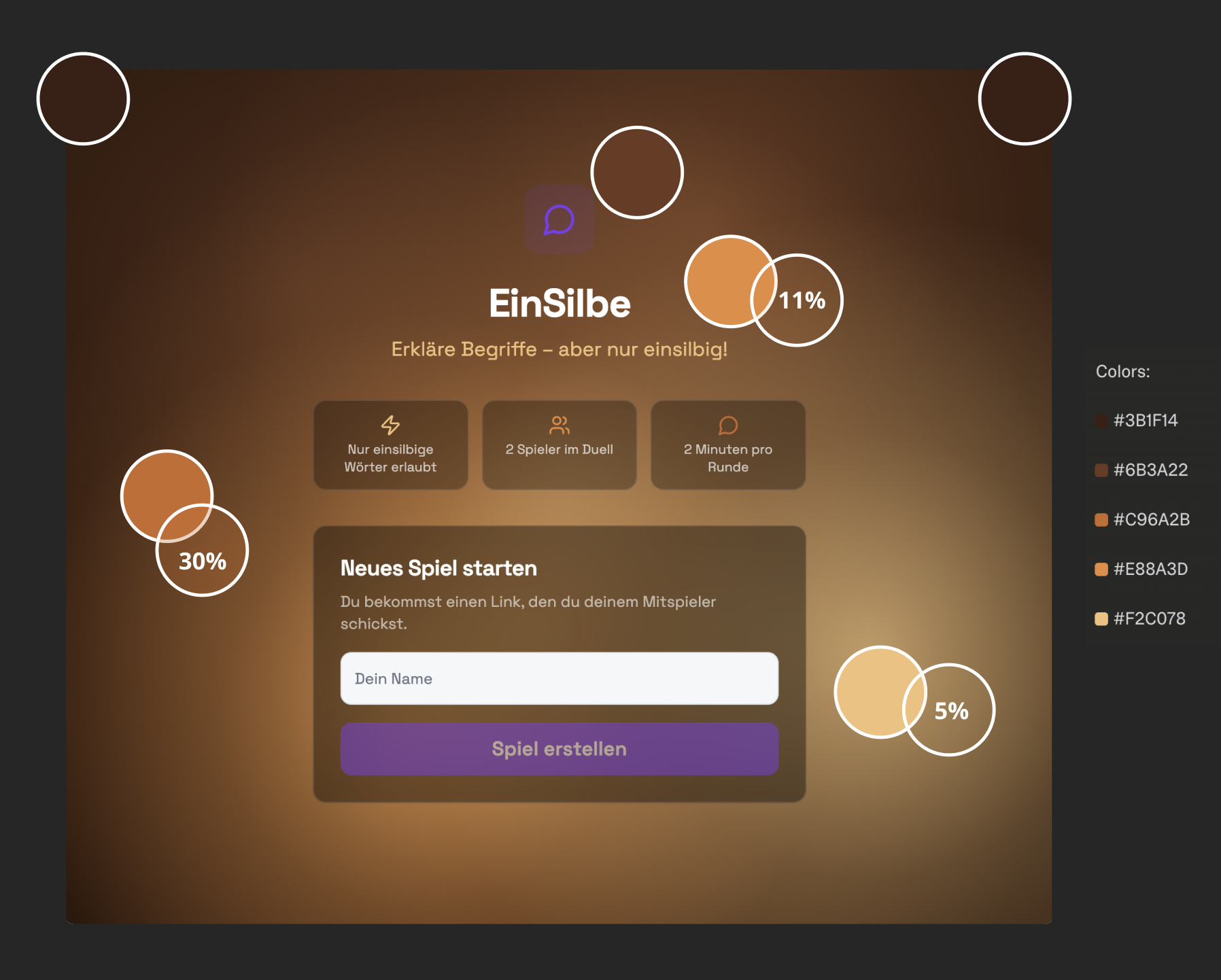
👀 I took a closer look at the result and checked whether my defined color values were actually used — and they were. 👉 But not in a literal way. The AI adapted, softened, and blended them to create a more balanced and visually pleasing composition.
👉 AI listens, executes, and tries to make things look right.
- In a way, AI behaves like a good design partner — And that’s powerful for exploration!
But what happens when I don’t want interpretation — when I already have a clear design in mind? Let’s take it one step further 👇
The link needs to be copied and shared.
- Generate caveman character images
- Redesign Home screen per Figma
- Redesign waiting screen per Figma
- Home: Caveman avatars with a “You?” / “You’re it?” toggle (orange ring = active), ‘EINSILBI’ title in Bungee Shade font, three rule cards, a warm name input field with an orange border + a purple “Start New Game” button
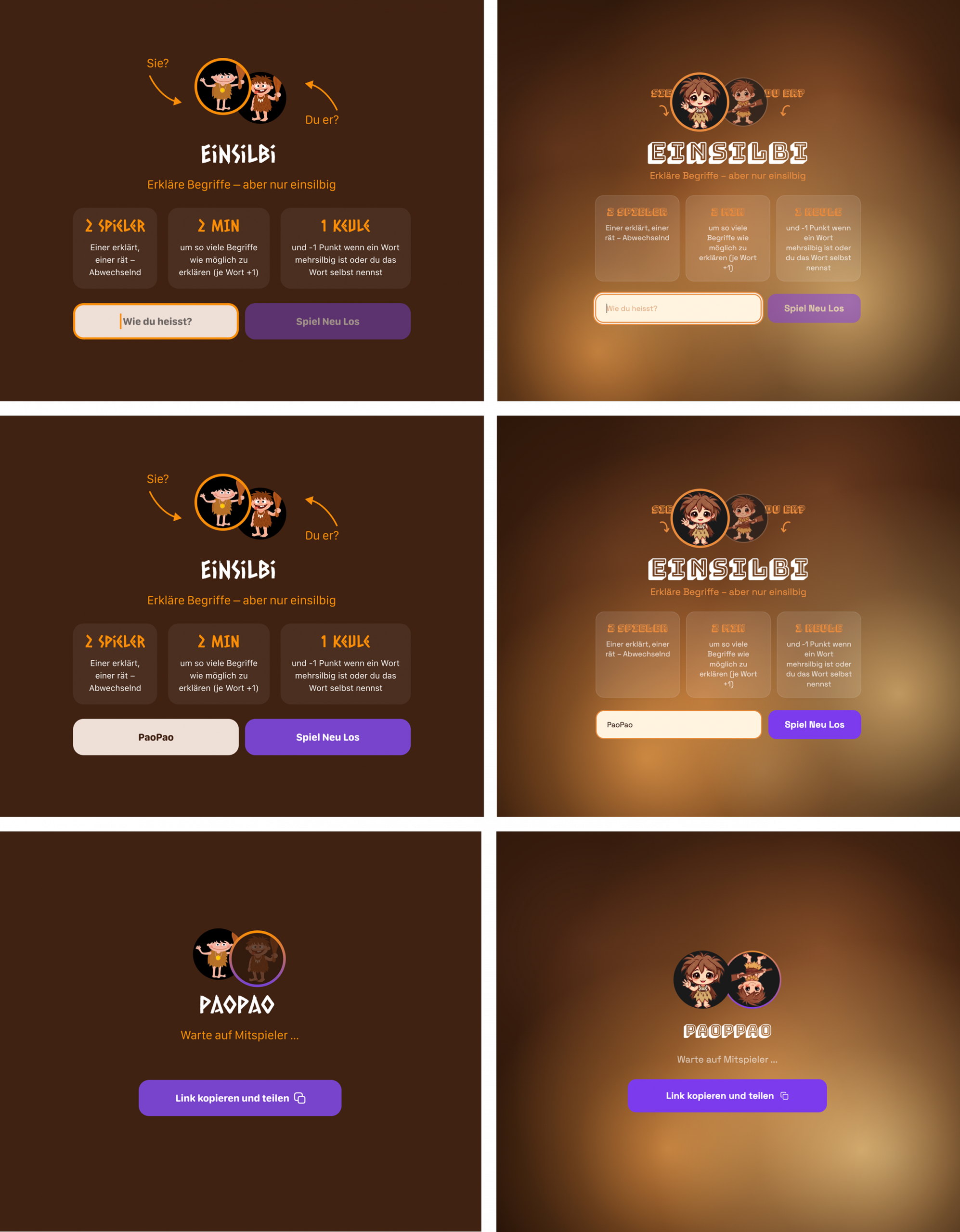
Ok, not bad. Some logic was understood — like some basic structure and interaction states — but even with visual references, I’m forcing the AI to interpret rather than replicate.
👉 The system cannot extract exact values from screenshots
- Fonts, colors, spacing, and dimensions are interpreted — not read
- Visual styles are translated into general categories (e.g. “playful”, “clean”, “modern”)
- Custom design gets approximated into generic solutions
- Works for simple layouts — breaks with distinctive design
👉 When information is missing, AI fills in the gaps with probabilities
- Missing details are silently filled in and will be recreated somehow
- Precision requires explicitly defining what must NOT be guessed
But what does a pixel-perfect and fast AI workflow actually look like?
I wanted to understand what it actually takes to get a pixel-perfect result. So instead of guessing, I asked the AI directly what it needs to replicate designs accurately. Below is a shortened version of that conversation👇
Provide colors, typography, spacing, and radius as screenshots or values. Then ask: “Please define all design tokens in index.css and tailwind.config.ts.”
Share one component at a time — including all variants and states. Ask: “Create this component with exactly these variants. Follow the design pixel-perfect.”
Once components are ready, provide full screens. Ask: “Rebuild this screen pixel-perfect using only the defined components.”
- One message = one component
(don’t send everything at once)
- Always provide exact values
(e.g. padding, radius, spacing, colors)
- show all component states
(hover, active, disabled)
-Show responsive breakpoints
(mobile, tablet, desktop)
Upload a screenshot and say
“Rebuild this pixel-perfect.”
I can extract colors, spacing and components directly. 👉 🦨💨💨💨💨 he can´t!
Copy CSS values and provide them as text instead of measuring manually.
I can derive a full design system and build all pages from them.
Provide your full design system and I’ll generate components and screens.
“Here is my design. Just build it.”
I’ll ask if something is missing.
1. Locofy.ai
• Export Figma → React + Tailwind
• Supports components & variants
2. Builder.io (Figma to Code)
• Generates React/Tailwind code
• Free version available
3. Design Tokens Plugin
• Export colors, typography, spacing as JSON
• Useful for structured systems
4. Figma Dev Mode (Inspect)
• Copy exact CSS values
• Most reliable for precision
Builder.io → better if you need a visual editor / CMS.
Both generate code that isn’t ideal for structured systems (no tokens, no reusable components).
It uses inline styles, separate components, and no real variant system.
I extract:
• Colors → design tokens
• Spacing → Tailwind tokens
• Components → structured system
• Variants → unified props
Then rebuild everything as reusable components.
One clean system where you can say:
“Change Button → secondary → gap 12px”
→ updates everywhere.
My follow-up question wasn’t clear enough and shifted the focus toward speed, and that’s where things started to break.
Suddenly, the conversation shifted away from pixel-perfect results toward “fast” solutions. The AI suggested it could reconstruct a full design system from screenshots alone — something it previously required explicit values for. At this point, promise and reality started to diverge.
👉 Build systems step by step — and provide the token values in advance
- AI works better when systems are built step by step, not all at once
- Define and provide design tokens upfront (colors, typography, spacing, radius)
👉 AI loses context quickly — clarity requires repetition
- It reacts to the latest input, not your overall goal
- Repeat constraints and system rules
- Treat each prompt as standalone
👉 AI answers are only as precise as the question behind them
- What feels like “wrong” output is often a misalignment in communication
- The goal can quickly shift — if you ask for speed, it will optimize for speed and forget accuracy.
- It generates what is most likely, not what is correct
- It can sound confident even when wrong
- If you need factual accuracy, you have to explicitly demand it
So I went back to Figma and designed the app with implementation in mind:
- Clearly defined design tokens (colors & typography only — scoped for speed)
- Structured, reusable components (variants included)
- Screens built with Auto Layout — responsive by default
- Mobile-first approach with explicit breakpoints
- Precise layout behavior — no room for interpretation
Then I used the builder.io output as a blueprint — just as recommended — to test what actually holds up in practice 👇
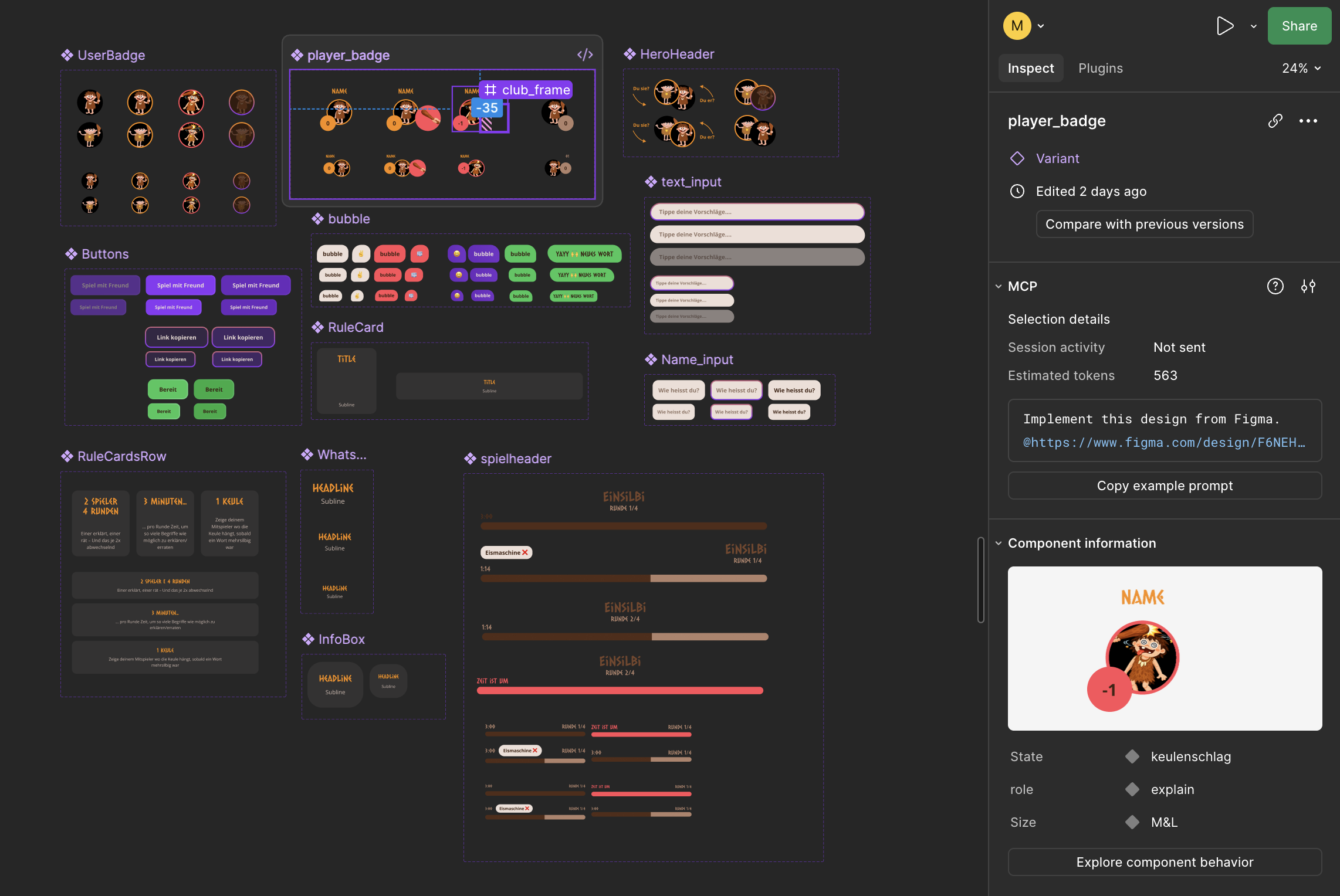
1. Structured component library: All components are clearly grouped and consistently organized
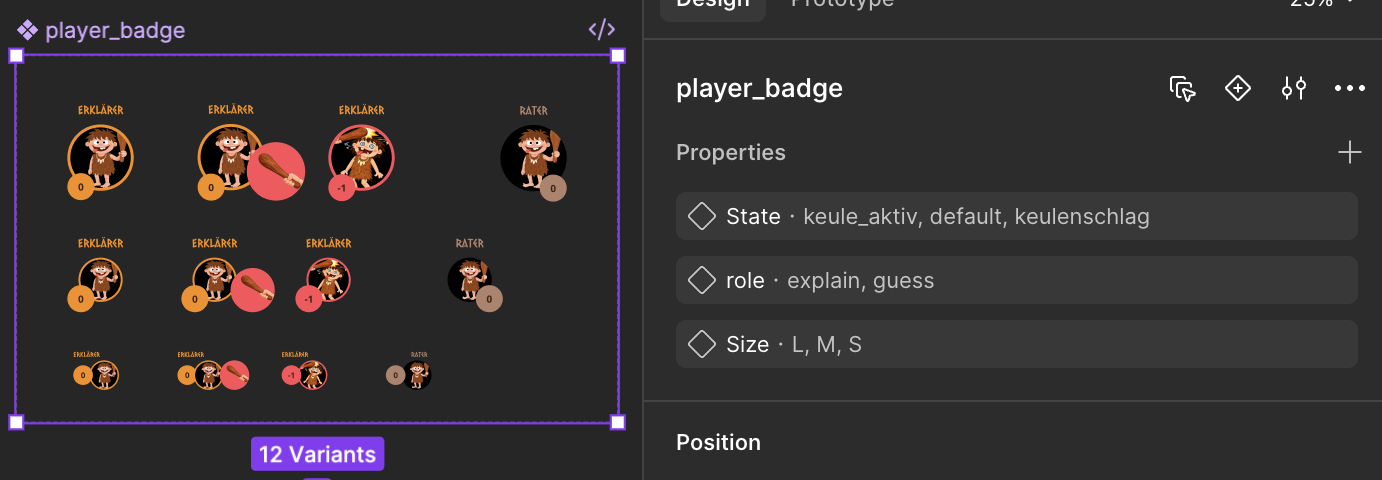
2. Consistent naming & variant logic: Components follow a clear naming system and predictable variant structure
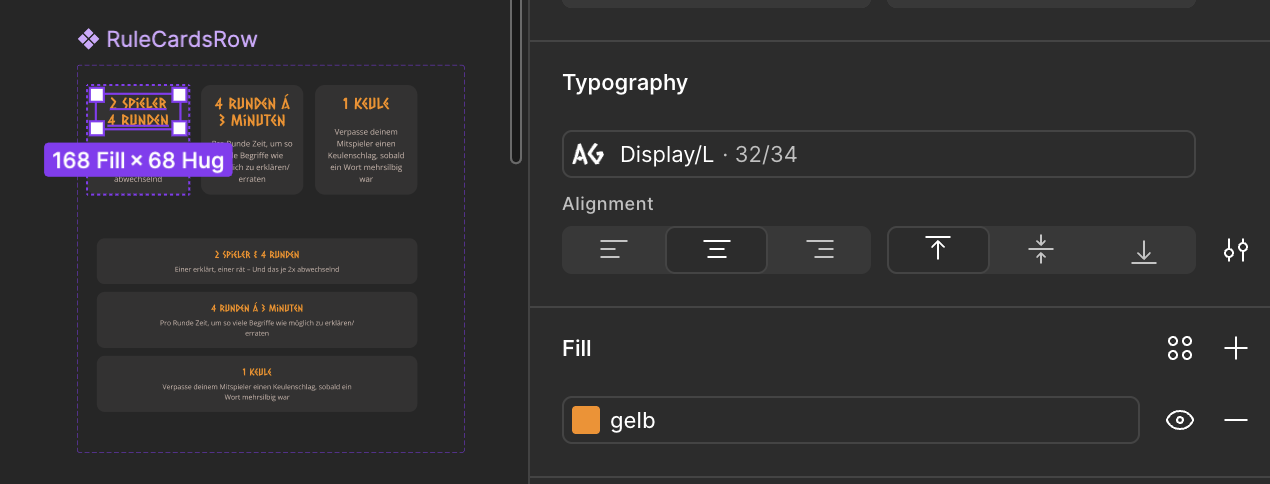
3. Token-based design system: All styles are based on reusable design tokens (colors, spacing)

4. Auto Layout for real responsiveness: Every component is built with Auto Layout and adapts across sizes
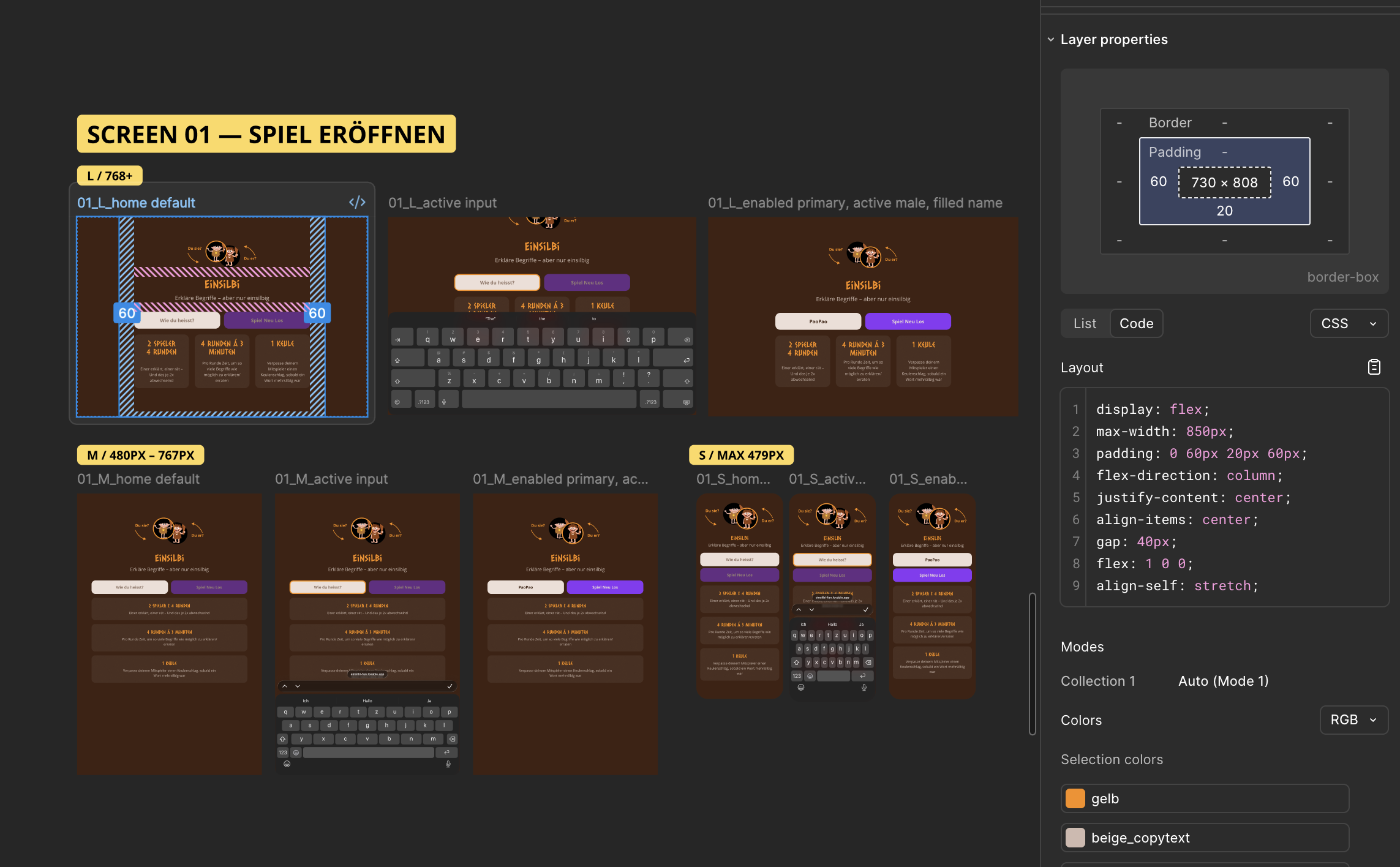
5. Mobile-first & responsive Screen-Design: with clearly defined breakpoints and behavior
My goal: 🎯 I was still looking for the fastest possible way to hand over my designs. 🚀 Instead of explaining everything in detail,
I wanted to see what could be automatically extracted from the Builder.io code.
I gave him:
- 1 Builder.io link per breakpoint and state
- Visual references of different breakpoints and states
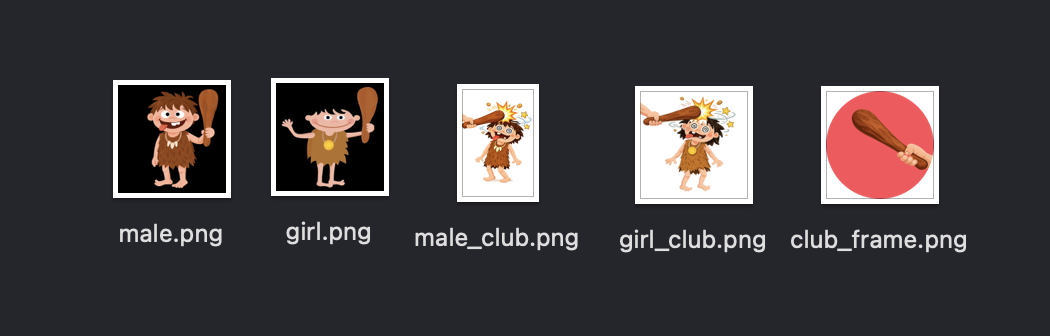
- Avatar-images as 2xPNG
- Precise instructions: A: to create a component and token system exactly like mine and B: to use Figma as a single source of truth
- Additional logic information for each screen
Lets see if my first structured, professional prompt for Screen 1 works good enough. 👇
Let us refactor the app screen by screen and use these instructions as the foundation to build a proper component system.
We start with Screen 01: the first player opens the app and starts a new game.
–––––––––––––––––––––––
Responsive Context
The app must be built mobile-first and work especially well on mobile devices and tablets. We use the following breakpoints across the entire app:.
• S: max 479px (small phones)
• M: 480px – 767px (large phones / small tablets)
• L: 768px+ (tablets and above)
–––––––––––––––––––––––
Acceptance Criteria
• Avoid horizontal scrolling on mobile
• When the keyboard opens, the input must stay visible and move up
–––––––––––––––––––––––
Approach
Introduce strict layout and component rules based on the provided Builder.io designs and code.
These should be used as the source of truth for:
• Layout behavior
• Spacing
• Component structure
• Responsive behavior
–––––––––––––––––––––––
Important
• Do NOT rebuild the whole app
• Refactor the existing screen
• Replace current elements with reusable components
–––––––––––––––––––––––
Goal
Build a system where:
• Components are clearly named
• Variants exist (default, active, filled, etc.)
• Components can be reused and modified later
Example:
“Change component X” → should work globally
–––––––––––––––––––––––
Component Validation (Critical)
The design was fully built in Figma with structured components and variants. The Builder.io export should reflect this structure.
Your task is to verify:
• Can you detect component names?
• Can you detect variants (state, size, etc.)?
• Can you detect nested components?
• Can you detect design tokens?
If NOT:
• explicitly tell me what is missing
• tell me what you cannot read from the code
• tell me what additional input you need
EXAMPLE (IMPORTANT):
We have a component called: Name_input
It includes:
• multiple states (default, active, filled)
• multiple sizes (L, S&M)
This component is used multiple times across this screen.
Your task:
• confirm whether you can detect this component
• confirm whether you understand its variants
• confirm whether you can map it correctly into a reusable component
If something is unclear → DO NOT GUESS → ask..
–––––––––––––––––––––––
Input
Use the following Builder.io exports as the source of truth. Each screen includes layout, structure, and component information.
L Breakpoint
• 01_home_default/L
https://api.builder.io/api/v1/file/assets/TEMP/r9fhin9xivdmmw4ssc2
• 01_L_active input
https://api.builder.io/api/v1/file/assets/TEMP/7i8kw1284jimmw4wqd4
• 01_L_enabled primary, active male, filled name
https://api.builder.io/api/v1/file/assets/TEMP/61psulvtwolmmw5ocpr
M Breakpoint
• 01_home_default/M
https://api.builder.io/api/v1/file/assets/TEMP/i9g3t3prnxkmmw4t9g0
• 01_M_active input
https://api.builder.io/api/v1/file/assets/TEMP/1dmzfy0w76wmmw4xn5o
• 01_M_enabled primary, active male, filled name
https://api.builder.io/api/v1/file/assets/TEMP/zhe3ylqfgv8mmw4ykuy
S Breakpoint
• 01_S_active input
https://api.builder.io/api/v1/file/assets/TEMP/jpelhvr9m8jmmw4z8oj
• 01_S_enabled primary, active male, filled name
https://api.builder.io/api/v1/file/assets/TEMP/20cy9rp6ufzmmw4zmle
–––––––––––––––––––––––
Component Extraction
• Use the provided code as the source of truth
• Extract components based on structure in the code
• Keep naming consistent with what you find in the code
IMPORTANT:
• If components are nested (component inside component), reflect that
• Do NOT flatten the structure
• Reuse components where possible
–––––––––––––––––––––––
Variants
• Use the different states (default, active, filled, enabled, etc.) to build component variants
• Do NOT create separate components for each state
–––––––––––––––––––––––
Keyboard & Device UI
• Ignore device UI (keyboard, status bar, frames)and do NOT implement them
• The keyboard is always device-native
Instead:
• Ensure inputs scroll into view when focused
• Prevent content from being hidden behind the keyboard
–––––––––––––––––––––––
Responsive Behavior
• Derive layout behavior from the provided code and designs
• Do NOT guess
• Ensure no horizontal scrolling
–––––––––––––––––––––––
IMPORTANT:
If something is unclear or cannot be derived from the code:
• explicitly tell me what is missing
• or what you cannot confidently determine
–––––––––––––––––––––––
Goal of this Step
• Build component structure
• Validate that components and variants are correctly understood
• Make it reusable and extendable
• Reflect the structure from the code as accurately as possible
Additional to the prompt: Avatars and screenshots: One shows Screen 1 at all breakpoints, and the other shows an example of the structure of the components with variants based on the InputFieldComponent.
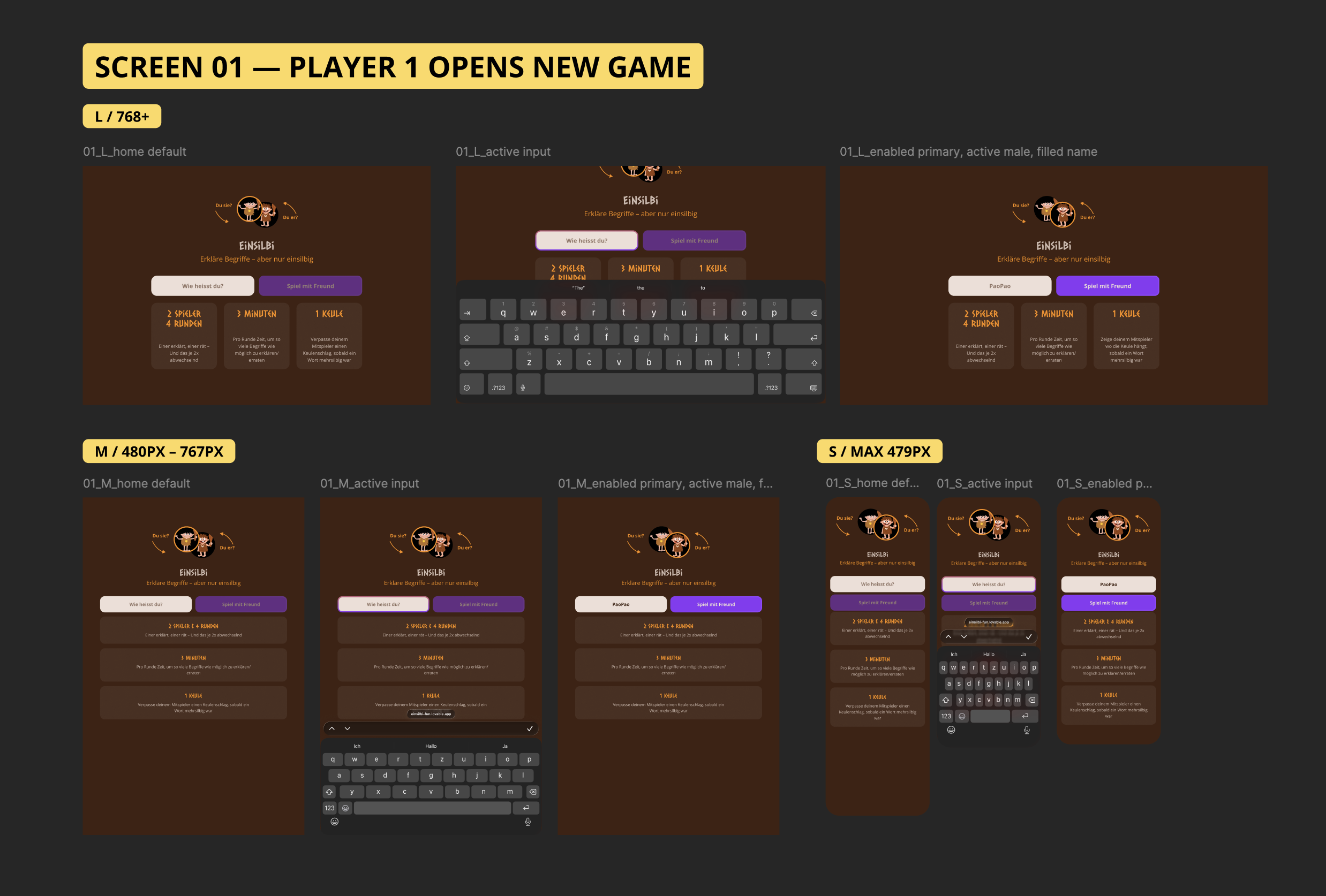
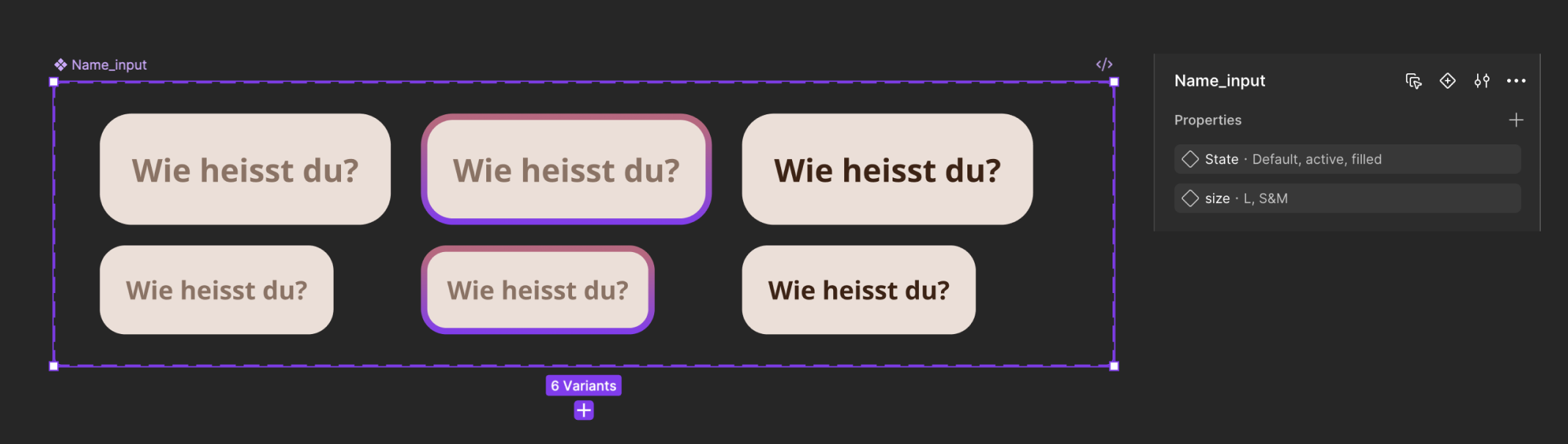
🧾 Results
✍️ What I intended to achieve
- Extract tokens, components, and layout 1:1 from Figma / Builder.io
- Build a clean, reusable component system
- Ensure pixel-perfect behavior across MY breakpoints
S: max 479px (small phones);
M: 480px – 767px (large phones / small tablets);
L: 768px+ (tablets and above)
With everything clearly defined — tokens, components, layout — this was the moment of truth. How much of the design would actually translate 1:1 into code? To break this down, I inspected the generated code and compared it directly against the design👇
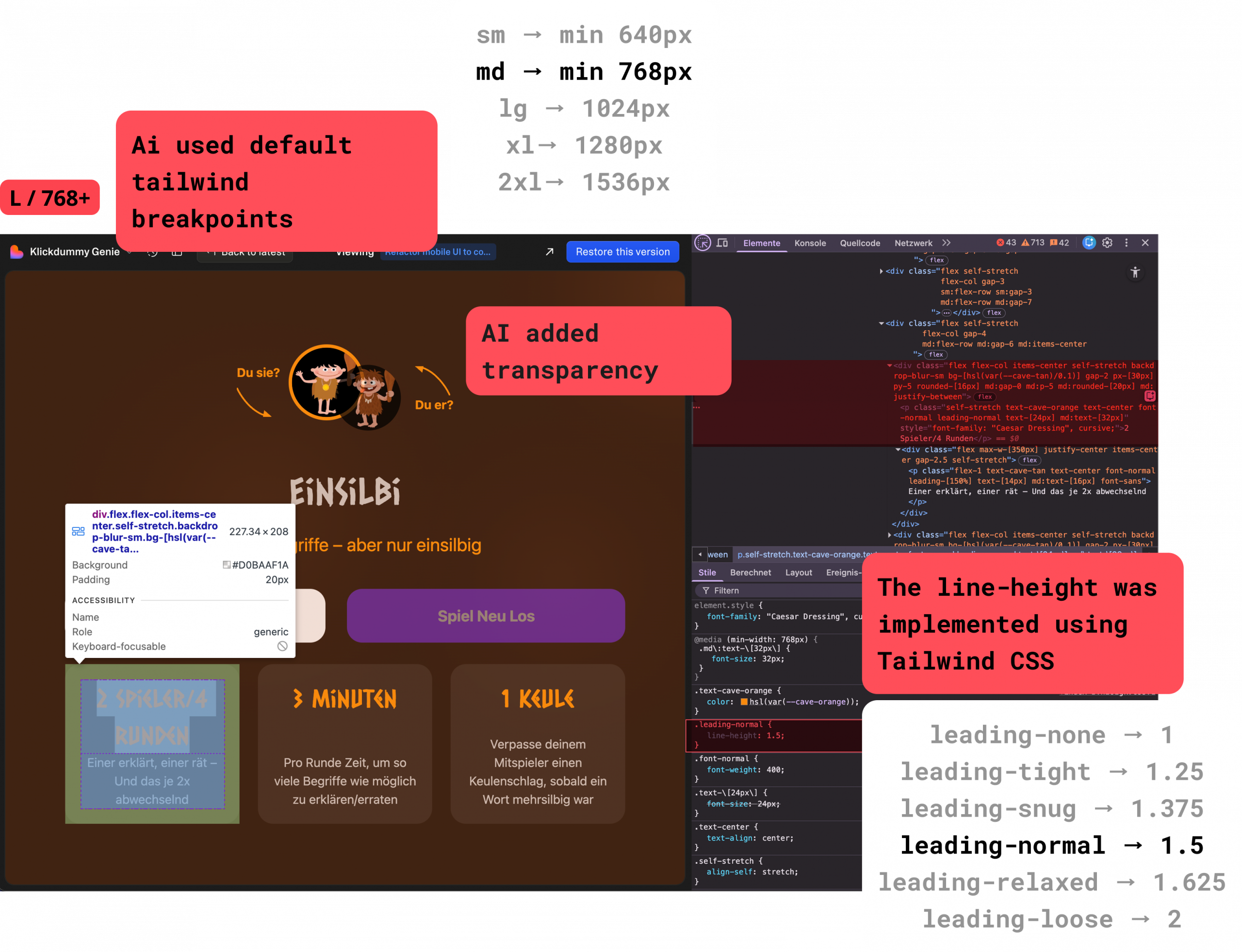
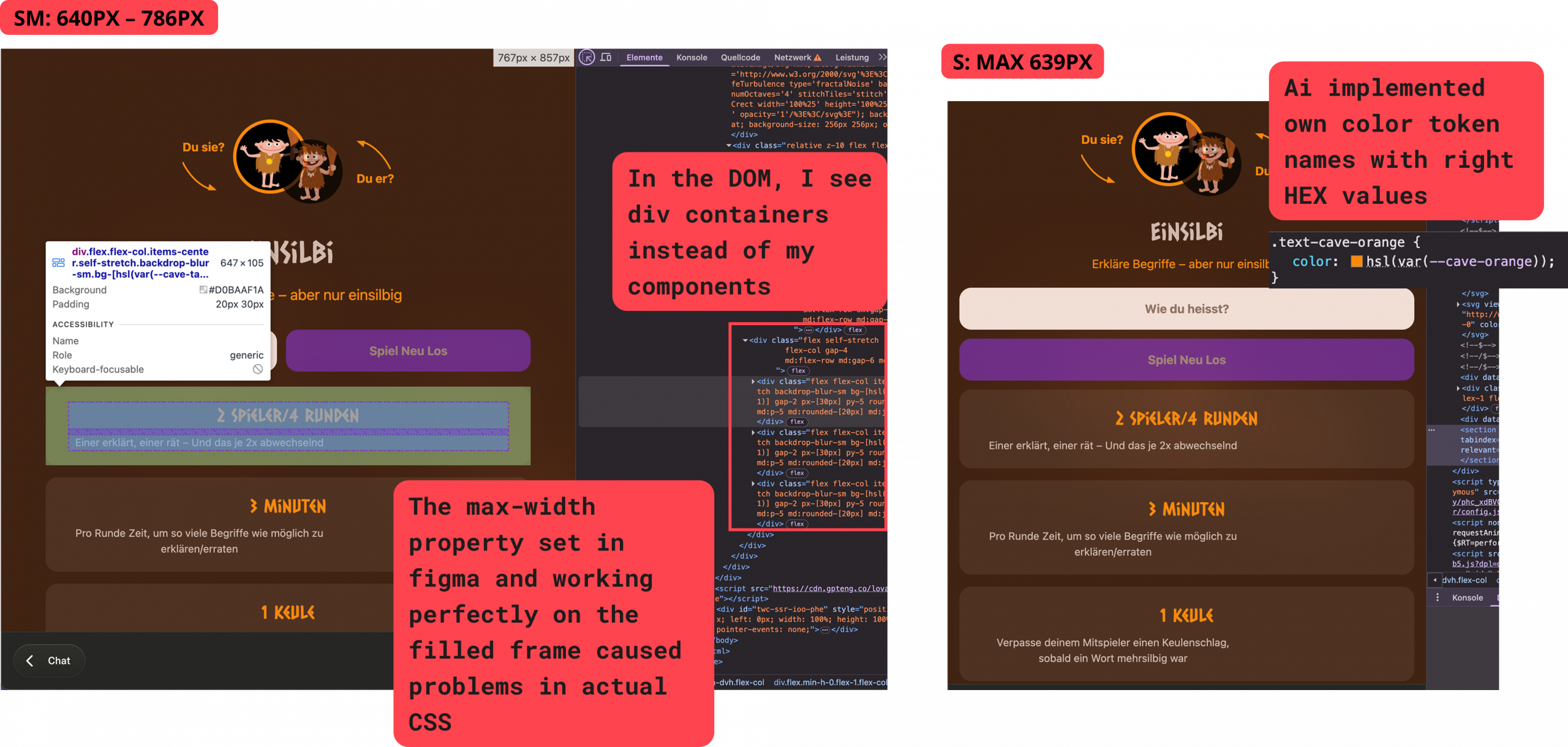
A lot worked very well 🥳
- ✅ Component structure was correctly identified 1:1
- ✅ Components and variants were recognized 1:1
- ✅ Reusability was considered
- ✅ Auto layout mostly worked 1:1
- ✅ Layout behaved generally stable
- ✅ Responsive structure was conceptually correct
- ✅ Design values were detected
- ✅ Colors were correctly extracted (HEX/HSL)
What didn’t work —
and why
1. Breakpoints were ignored —
until explicitly enforced
“Use the following breakpoints across the entire app:
S: max 479px (small phones);
M: 480px – 767px (large phones / small tablets);
L: 768px+ (tablets and above)”
👉 This was not defined as a strict system — so it was treated as flexible
→ so my custom breakpoints (S / M / L) were NOT implemented
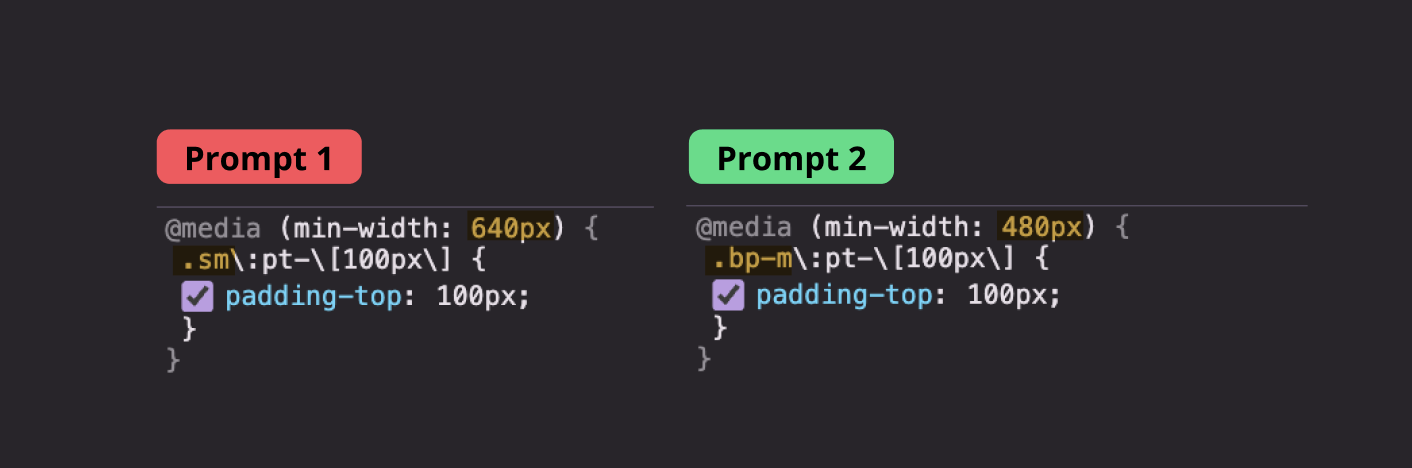
→ instead, default Tailwind breakpoints were used (sm: 640px, md: 768px)
🚧 I had to change the Prompt to:
❗BREAKPOINT SYSTEM MANDATORY
❗ Use exactly these breakpoints: …
❗ You MUST refer to them as: S, M, L
👉 This finally overrode Tailwind defaults and enforced my custom breakpoint system
2. Figma Line-height “auto”
was replaced by a default Tailwind value
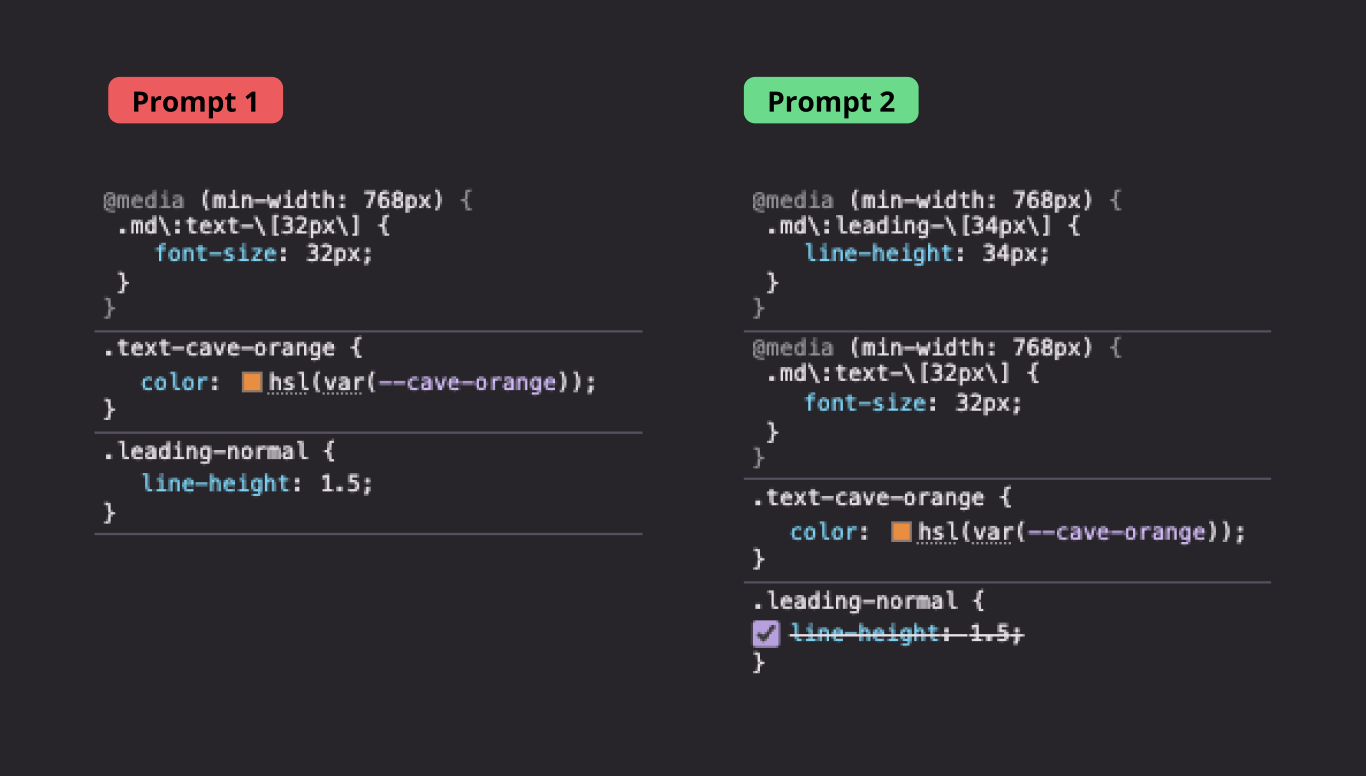
👉 Figma value “auto” → mapped to a default Tailwind value (1.5) instead of the actual computed line-height (~1.22)
🚧 I had to replace all “auto” line-heights in Figma with explicit values
👉 This overrode Tailwind defaults and preserved the intended typography
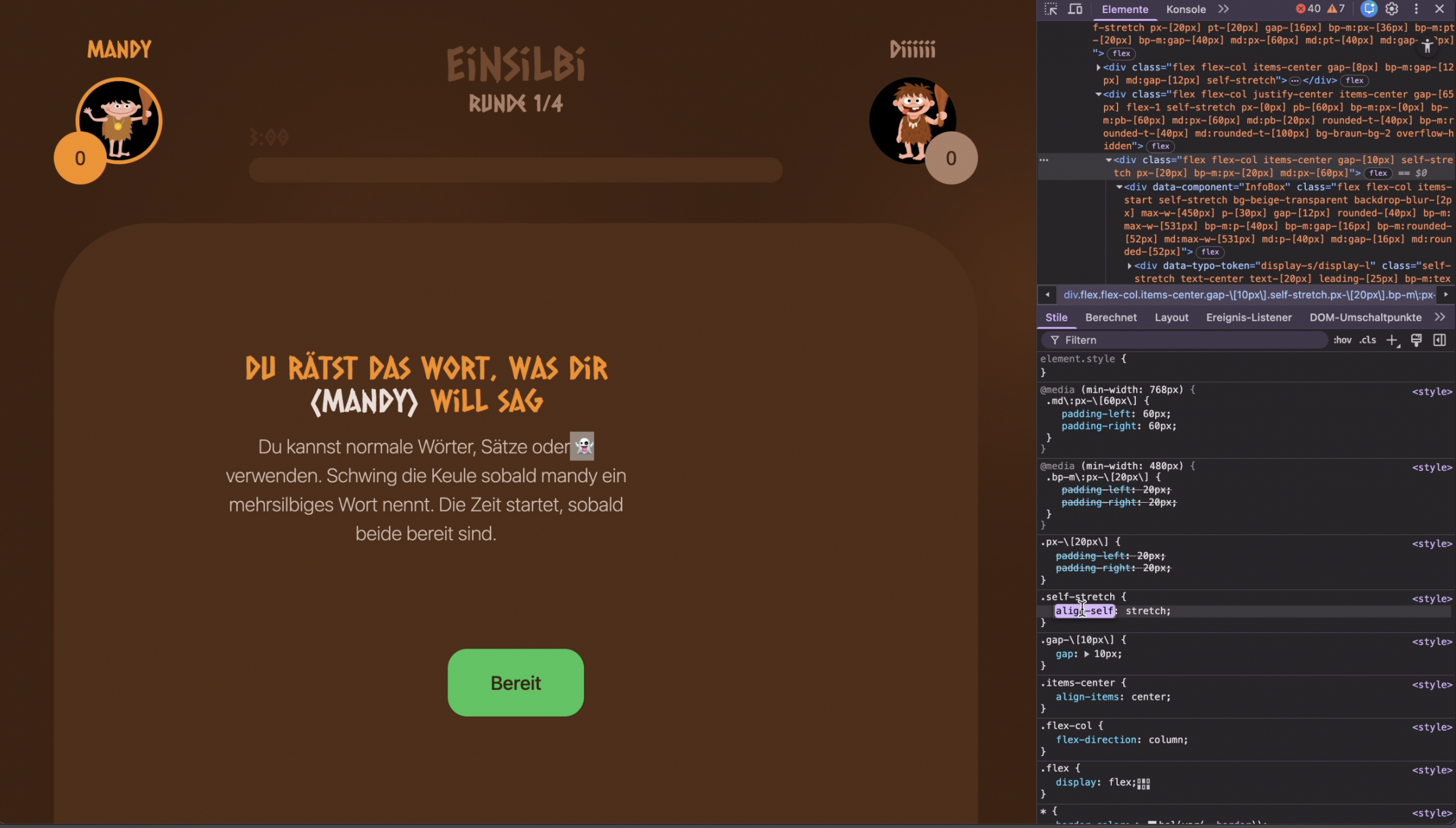
3. Figma Max-width
broke centering
👉 In Figma, you can apply max-width to a centered & filled element without breaking alignment. 👉 In CSS, applying max-width to the flex container breaks centering.
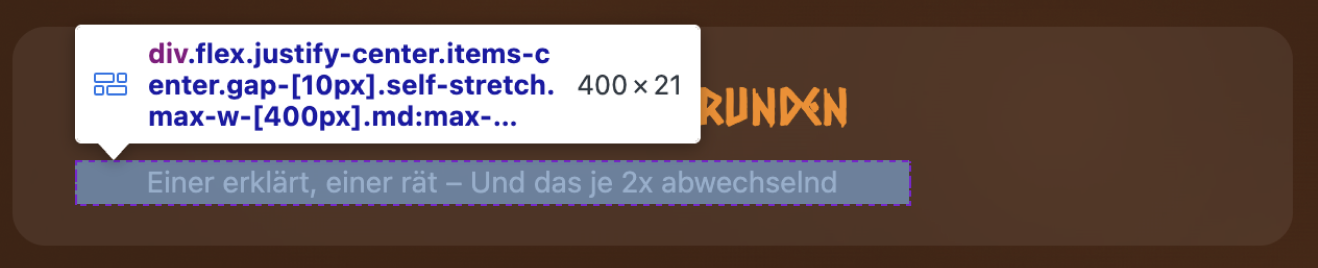
🚧 I had to add a wrapper in Figma to match real CSS
- wrapper → full width + centered
- subline → max-width

👉 This aligns with how layout actually works in code
❗️ This works for text — not for full components
- A text element can handle both fill and max-width.
- A component cannot. It defines its own layout
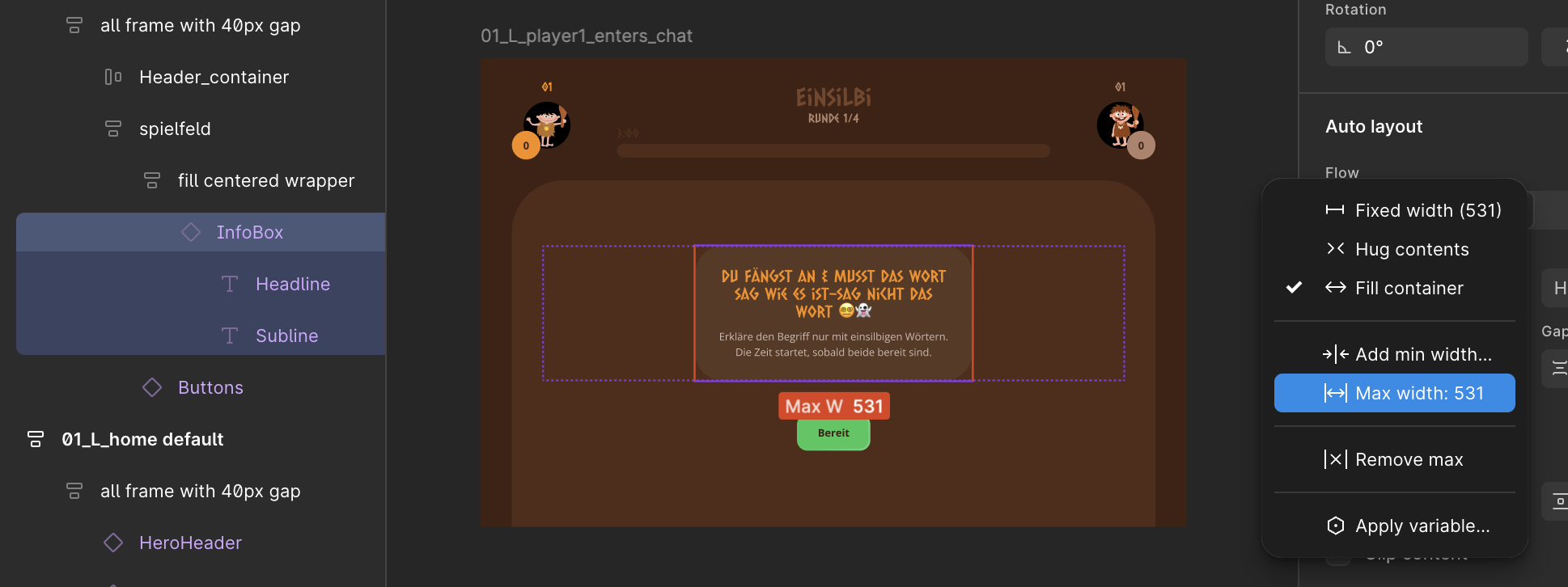
👉 Combining fill (stretch) + max-width on a component breaks alignment
👉 A wrapper alone does NOT fix it
I had to advice Lovable afterwards 👉 Replacing align-self:stretch with width:100% was not enough → The system still enforced full-width behavior (w-full). 👉 Only removing the stretch behavior entirely fixed centering + max-width
A few other issues with Figma
vs Reality came up: 👀
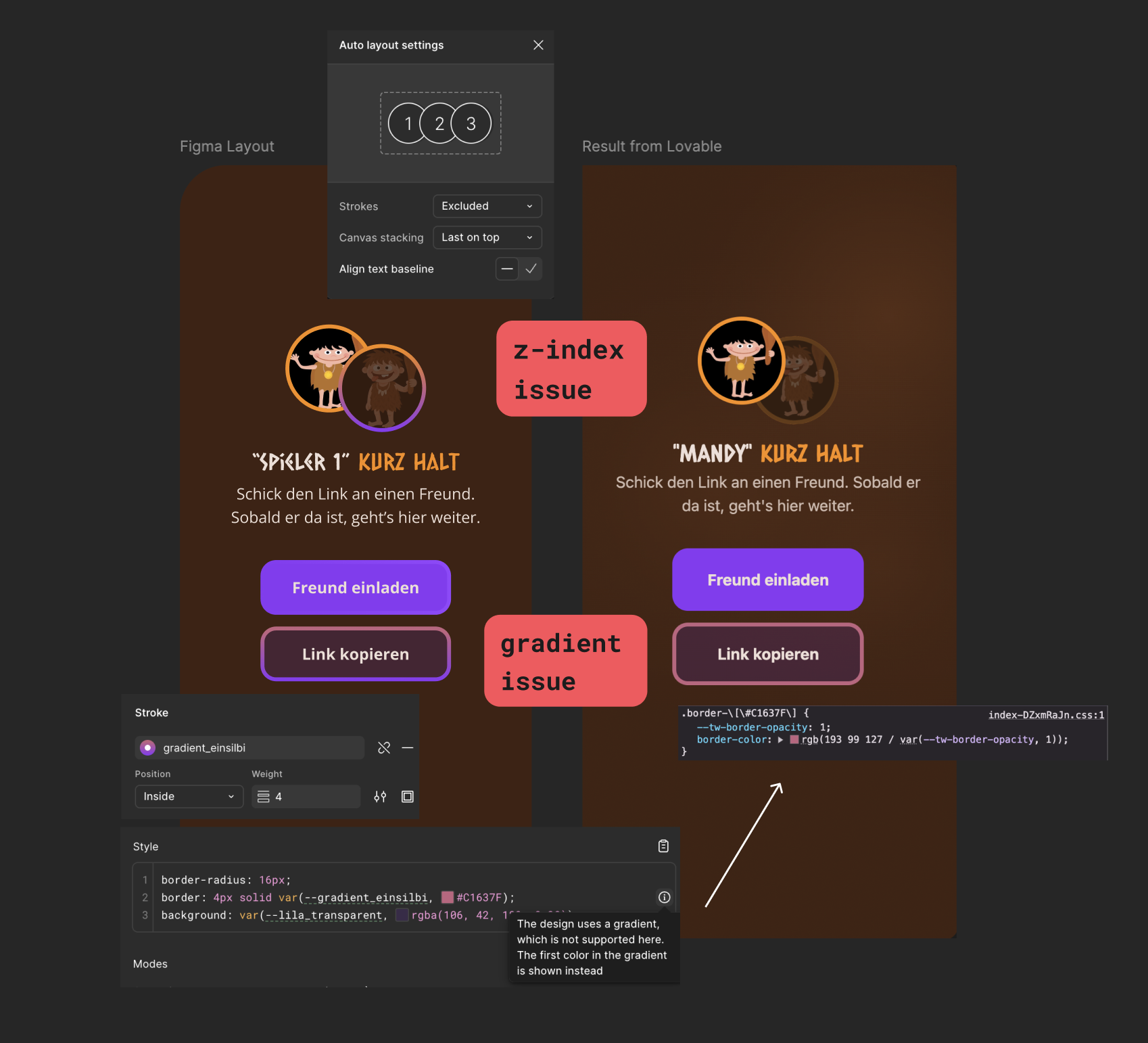
4. Figma layering
is not transferred to CSS z-index
👉 Figma uses visual stacking (layer order)
👉 CSS uses explicit stacking (z-index + positioning)
 I then had to manually set the z-index in Lovable.
5. Figma-gradient-strokes
don’t translate directly to CSS
👉 In Figma, strokes can use gradients
👉 In CSS, borders are typically solid — gradient borders are not native
👉 The gradient stroke was not reproduced as a real border
→ because CSS has no simple equivalent
🚧 I had to explicitly instruct Lovable to simulate the gradient stroke using layered backgrounds
background-clip was required to keep the center solid — so only the outer edge appears as a gradient border
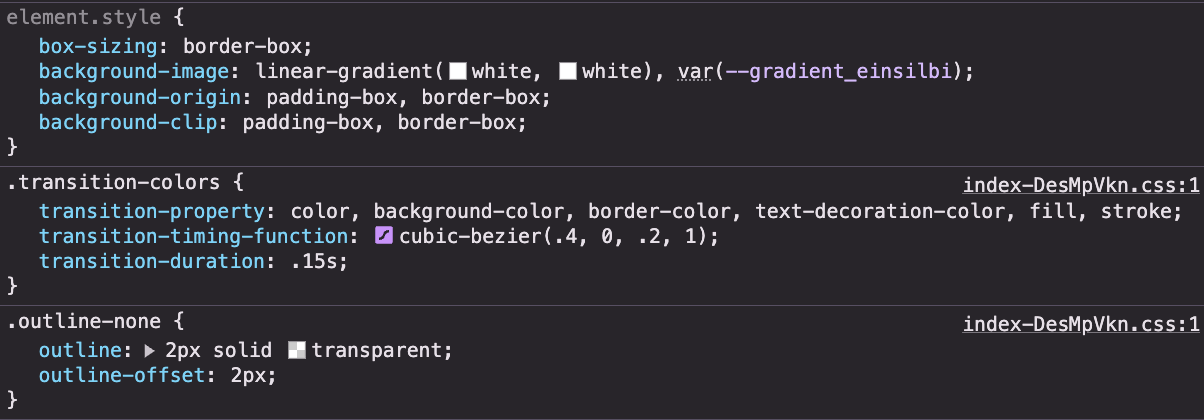
👉 Figma ≠ Real CSS Constraints
- Figma values like “auto” (e.g. line-height) do not translate reliably and often get mapped to incorrect defaults in code.
- What visually works in Figma can break in real CSS layouts.
- CSS requires structural separation, while Figma allows simplified setups that don’t exist in implementation.
- Generated code must be actively corrected.
- Figma uses visual rendering, while CSS relies on structural rules — complex effects like layering and gradients often require manual correction.
6. Visual styling was added
(blur / transparency)
I prompted: “If something is unclear → DO NOT GUESS → ask… ” & “…use the following Builder.io exports as the source of truth” 👉 Even with these instructions, the AI still interpreted the design
👉 I wasn’t strict enough in defining its role and behavior 👉 That implies design improvement freedom. So Lovable added opacity, even though it wasn’t present in the Figma design.
🚧 I had to change the prompt to
“CRITICAL WORKING MODE:”
❗“You are an expert Frontend Developer”
❗“You are NOT designing”
❗“You are NOT interpreting.”
❗“You are EXTRACTING a system from the provided Builder.io code.”
❗“Every decision must come from the builder.io-code.”
❗“Do NOT recreate or reinterpret.”
👉 This shuts down creative behavior.
Auto message from Lovable:
❌ UserBadge opacity-70 / scale →
✅ Removed (not part of the design)
👉 AI Does Not Follow Intent — Only Instructions
- AI executes exactly what is specified — and needs clear boundaries.
- Explicit prohibitions are required to prevent drift from the intended logic.
- Precision in instructions turns unpredictable output into controlled, reliable behavior.
7. DOM didn’t show
my Figma components
After Prompt 1 and 2, I initially thought no components were created – even though Lovable said he had done so 👉 Because I couldn´t see them in DOM. But the issue wasn’t the implementation — it was visibility.
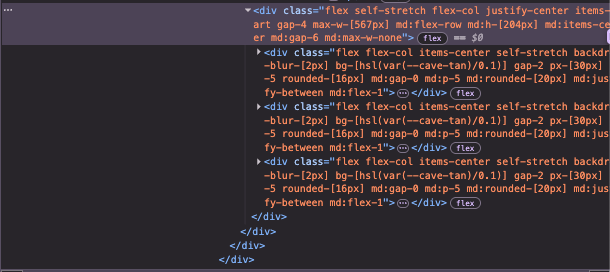
Lovable builds React Components. React “breaks down” your components into standard HTML during rendering. This makes it impossible to inspect a component using the inspector tool.
🚧 I had to change the Prompt to:
❗Each component MUST include a visible identifier in the DOM: → data-component=”ComponentName”
👉 Now my components are visible in DOM, too.
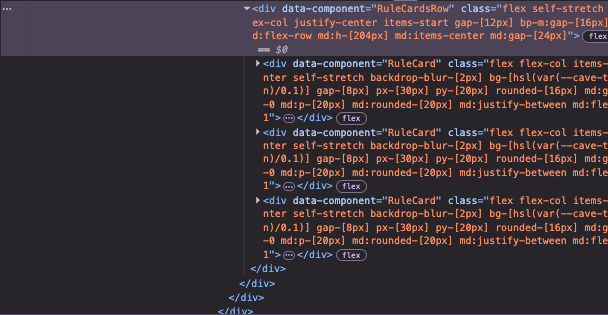
👉 React Components Are Invisible in the DOM by Default
- Lovable builds React components, but they do not appear in the DOM as component names. They exist in the JavaScript code and render as regular HTML elements such as divs.
-
Only after explicitly adding
data-componentin Prompt 3 did the component structure become visible, making the architecture inspectable and verifiable.
8. Color tokens:
from missing → to wrong → to correct
⚠️ In Prompt 1 I forgot writing anything about Tokens:
No token instructions.
👉 Result: The model created its own token system (cave-*) based on HEX values from the builder.io-Code.
⚠️ In Prompt 2 I wrote:
“Use ONLY existing color and typography tokens from Figma”
👉 The model reused its previously created tokens, because Builder.io was defined as the single source of truth, while Figma was not accessible.
I had to change the Prompt to:
 Prompt 3:
1. Source of truth was consistent and unambiguous
❗️Builder.io exports are the single source of truth for:
- …
- color token
- typography token
👉 No conflicting reference to Figma anymore
2. Strict execution mode
❗️You are NOT designing.
 You are NOT interpreting.
You are BUILDING.
3. Strict token usage rules
- You MUST always use color tokens in components
- Never use hex values directly in components
- Use EXACT token names from Builder.io code (no renaming)
- If the token EXISTS → use it exactly as defined
- If the token DOES NOT EXIST → add it to the token system
- Do NOT replace missing tokens with similar ones
3. Tokens were fully specified via list
COLORS: gelb: #F98D09; rot: #FF4E59 …
 The model kept its old tokens as aliases to avoid breaking existing code — but the active system now uses the correct Figma token names.
👉 Builder.io Code
- I validated this in a fresh Lovable project: even without defining tokens manually, the model correctly extracted all color tokens from the Builder.io code — as long as the prompt explicitly required token-based styling and a token list.
Here is my nearly perfect final prompt 👇

We work screen by screen.
Builder.io exports are the single source of truth for:
• layout
• structure
• hierarchy
• color token
• typography token
You are NOT designing.
You are NOT interpreting.
You are BUILDING.
–––––––––––––––––––––––
STEP 1 — TOKENS (MANDATORY FIRST)
You MUST define ALL tokens BEFORE building components.
COLORS:
• braun_bg_2: #522C18
• rot: #FF4E59
• braun_logo_bg: #77462B
• braun_bg_1: #402212
• white: #EEDFD7
• gelb: #F98D09
• beige: #B1826A
• schwarz: #000000
• braun_wait: rgba(64,34,18,0.8)
• lila: #8A38F5
• beige_transparent: rgba(173,163,158,0.1)
• beige_copytext: #CFB9AE
• beige_placeholder_text: #8F7263
• grün: #34C759
• gelb_star: #DEB236
• lila_hover: #6A2ABD
• grün_hover: #20AC43
• lila_transparent: rgba(106,42,189,0.2)
• lila_transparent_hover: rgba(106,42,189,0.4)
TYPOGRAPHY:
Display:
• XXL: 48px
• XL: 40px
• L: 32px / 34px
• M: 24px
• S: 20px
• XS: 17px
• XXS: 14px
Text:
• Body: 16px / 150%
• L: 24px / 150%
• M: 20px / 150%
• S: 14px / 150%
Bold:
• L: 20px / 150%
• M: 16px / 150%
• S: 14px / 150%
RULES FOR TOKENS:
• Create tokens in:
→ index.css
→ tailwind.config.ts
• NEVER use raw values in components
• ONLY use tokens
–––––––––––––––––––––––
GOAL:
• Pixel-perfect implementation
• EXACT component structure from design
• ALL components must be real React components
Detection is NOT enough:
→ every detected component MUST be implemented
–––––––––––––––––––––––
COMPONENT RULES:
• Use EXACT names from code
• DO NOT rename
• Reuse components
• Variants via props
Example:
Button variant="primary" state="active" size="L"
• Nested components MUST be extracted
• NO duplicate components
Each component MUST include:
• data-component="ComponentName"
–––––––––––––––––––––––
BREAKPOINTS:
• S: max 479px
• M: 480–767px
• L: 768px+
• Use S / M / L naming in code
• NO guessing
–––––––––––––––––––––––
LAYOUT RULES:
• EXACT alignment from design
• NO default centering
• Respect horizontal AND vertical alignment
–––––––––––––––––––––––
RESPONSIVE RULES:
• NO horizontal scrolling on mobile
• Input must stay visible when keyboard opens
–––––––––––––––––––––––
VALIDATION STEP (MANDATORY):
Before building, answer:
• Detected components
• Detected variants
• Used tokens
• Missing / unclear parts
If something is unclear:
→ STOP and ask
–––––––––––––––––––––––
OUTPUT:
• index.css (tokens)
• tailwind.config.ts
• components/ui/*
• screen implementation
Also provide:
• component list
• variants per component
• used tokens
–––––––––––––––––––––––
INPUT:
L BREAKPOINT:
• 01_L_home default
https://api.builder.io/api/v1/file/assets/TEMP/jk7s3zvyn2imndpssmy
• 01_L_active input
https://api.builder.io/api/v1/file/assets/TEMP/n533cdy5qlmndpuf6j
• 01_L_enabled primary, active male, filled name
https://api.builder.io/api/v1/file/assets/TEMP/gcobr6j5wkimndpuuwj
M BREAKPOINT:
• 01_M_home default
https://api.builder.io/api/v1/file/assets/TEMP/6xkqy6kusnjmndpvsy3
• 01_M_active input
https://api.builder.io/api/v1/file/assets/TEMP/ii2w0btp2gsmndpwbyx
• 01_M_enabled primary, active male, filled name
https://api.builder.io/api/v1/file/assets/TEMP/5b7vdr2g21xmndpwqmn
S BREAKPOINT:
• 01_S_home default
https://api.builder.io/api/v1/file/assets/TEMP/ezs1ezjnruamndpx55u
• 01_S_active input
https://api.builder.io/api/v1/file/assets/TEMP/q5ngaa7xlnlmndpxmmu
• 01_S_enabled primary, active male, filled name
https://api.builder.io/api/v1/file/assets/TEMP/z8nnu1yu90imndpy61e
How to ask for small changes?
I wanted him to change some max-width values in one component and wrote:
“You are an expert front-end developer. I want to change the max width of the headline in “WhatsUp-Component”
1. Look at the ‘WhatsUp’ component in our project.
2. Change max width ofHeadline in “WhatsUp”-component-L to 450px.
3. Change max width of Headline in “WhatsUp”-component-M to 400px.
4. Change max width of Headline in “WhatsUp”-component-S to 300px.”
Planning: 👉 Before you start: if something is unclear: ➡️ STOP and ask.
Validation: 👉 Let me know afterward exactly what you did
👉 this worked perfectly!
How do I make the system stick — without repeating everything?
After finally getting a clean design system (tokens, components, structure), the next challenge was obvious 👉 How can I lock these rules in, so I don’t have to repeat them in every prompt? — similar to Cursor Rules? The solution was to externalize the system.
I introduce three core files:
- instructions.md→ global rules and behavior
- component_system.md → components, variants, updates
- game_rules.md → screen-specific logic
💡 The idea is to shift from prompt-heavy instructions to a system-driven workflow. 👇
This is NOT only documentation. This is ALSO implementation.
–––––––––––––––––––––––
CORE TASK
• Create these 3 files:
• instructions.md
• component_system.md
• game_rules.md
• Apply ALL rules immediately to the current app
• Refactor the app to match:
• tokens
• layout rules
• responsive rules
• component logic
–––––––––––––––––––––––
FILE 1: instructions.md
Global Instructions
• Apply to ALL screens
• Must ALWAYS be followed
General Behavior
• ❗️Builder.io exports are the single source of truth for:
• layout
• structure
• hierarchy
• color tokens
• typography tokens
• ❗️You are NOT designing
• ❗️You are NOT interpreting
• ❗️You are BUILDING
• Do NOT guess
• If unclear → ask
• If not derivable from builder.io code → say it clearly
–––––––––––––––––––––––
Component System (CRITICAL)
General Rules
• Always build reusable components
• Never create duplicates
• Always reuse existing components
• Decisions based on names, not visuals
• Use EXACT naming from builder.io code
Component Detection (STRICT)
• Extract component names from builder.io code
• Compare with existing components
Rules:
• Name matches → SAME component
• Name does not exist → NEW component
• No guessing based on visuals
• Only use explicit naming
Variants vs Updates
• Existing component + new variant → ADD
• New component → CREATE
Variant Detection
• Derived from:
• state
• size
• naming in builder.io code
Rules:
• Existing → UPDATE
• New → ADD
• Never invent
Global Updates (STRICT)
• Always global
• Never local overrides
• Never duplicate instead of updating
Reporting (MANDATORY)
• Updated components
• Added variants
• New components
Component Structure
• Extract from builder.io code
• Respect nesting
• Do NOT flatten
• Match EXACT structure
–––––––––––––––––––––––
TOKENS (MANDATORY — FIRST STEP)
❗️STEP 1 — TOKENS (MANDATORY FIRST)
• You MUST define ALL tokens BEFORE building components
• Tokens must be extracted from builder.io code
• Tokens are NOT optional
Token Rules
• ❗️NEVER use raw values in components
• ❗️ONLY use tokens
• No hex values
• No px values
• No raw font sizes
• No raw spacing
• Use EXACT token naming from builder.io code
• Do NOT rename tokens
Implementation
• index.css → token definitions (source of truth)
• tailwind.config.ts → token usage mapping
Color Tokens
• braun_bg_1 → #402212
• braun_bg_2 → #522C18
• braun_logo_bg → #77462B
• white → #EEDFD7
• schwarz → #000000
• gelb → #F98D09
• gelb_star → #DEB236
• lila → #8A38F5
• lila_hover → #6A2ABD
• grün → #34C759
• grün_hover → #20AC43
• beige → #B1826A
• beige_copytext → #CFB9AE
• beige_placeholder_text → #8F7263
• beige_transparent → rgba(173,163,158,0.1)
• lila_transparent → rgba(106,42,189,0.2)
• lila_transparent_hover → rgba(106,42,189,0.4)
• braun_wait → rgba(64,34,18,0.8)
Gradient Tokens
• --gelb_lila: linear-gradient(180deg, #F98D09 0%, #8A38F5 100%)
• --gradient_einsilbi: linear-gradient(180deg, #C1637F 11.06%, #8A38F5 100%)
• --gradient_button: linear-gradient(90deg, var(--lila) 0%, #9646FF 100%)
• --gradient_button_hover: linear-gradient(90deg, var(--lila_hover) 0%, #7333C8 100%)
• --gradient_button_gruen_hover: linear-gradient(91deg, var(--grün_hover) 0.86%, #3DB75C 98.97%)
• --gradient_button_gruen: linear-gradient(91deg, var(--grün) -3.81%, #63D37F 110.31%)
Typo Tokens
Display:
• XXL → 48/56
• XL → 40/42
• L → 32/34
• M → 24/27
• S → 20/25
• XS → 17/21
• XXS → 14/17
Text:
• Body → 16/150
• L → 24/150
• M → 20/150
• S → 14/150
Text Bold:
• L → 20/150
• M → 16/150
• S → 14/150
–––––––––––––––––––––––
Responsive & Layout
Breakpoints
• S: max 479px
• M: 480–767px
• L: 768px+
Rules
• No horizontal scroll on mobile
• Layout adapts to viewport
• No height break
Global Behavior (CRITICAL)
• Portrait only (no landscape)
• No horizontal scroll
• Keyboard:
• visual only
• layout shifts
• input visible
• Background:
• braun_bg_1
• applied globally
• no white gaps
–––––––––––––––––––––––
File Management
game_rules.md
• Add / update
• No duplicates
• Structured
component_system.md
• Track:
• components
• variants
• updates
–––––––––––––––––––––––
Working Process
For every screen:
1. Analyze builder.io code
2. Extract tokens
3. Define tokens (index.css + tailwind.config.ts)
4. Extract components
5. Implement components
6. Apply:
• update / variant / new
7. Validate:
• naming
• variants
• structure
8. Apply responsive behavior
9. No raw values
–––––––––––––––––––––––
Implementation Rules
Components
• Exact naming
• Reuse always
• Variants via props
• No duplicates
• Extract nested
• Extend, never recreate
• Add:
• data-component="ComponentName"
Tokens
• Only tokens
• No raw values
• No inline raw styles
Breakpoints
• S / M / L exact
• Must match builder.io code
Layout
• No assumptions
• Match design exactly
–––––––––––––––––––––––
Validation (MANDATORY)
• Components correct
• Variants correct
• Structure correct
If not:
• state missing
• state unclear
–––––––––––––––––––––––
FILE 2: component_system.md
• Component: [Name]
• Variants:
• size
• state
• Notes
• Updates:
• UPDATE: description
–––––––––––––––––––––––
FILE 3: game_rules.md
• SCREEN [NUMBER] — [NAME]
• Rule:
• Logic
• UI Behavior
–––––––––––––––––––––––
IMMEDIATE REFACTOR TASK
• Replace ALL colors with tokens
• Replace ALL typography with tokens
• Remove ALL raw values
• Fix layout (scroll, keyboard, portrait)
• Apply global background
• Update components (naming, variants, reuse)
–––––––––––––––––––––––
FINAL RULE
• Always use these files
• Always update them
• Always enforce them
–––––––––––––––––––––––
bitte füge das hier noch sinnvoll ein.. keine dopplungen ✌️
bitte plane vorher wie es schaffst, keine einzige anweisung zu vergessen!. alle meine anweisungen sollen zu 100% im text vorkommen. ich brauche einen einzigen copierbaren text für Lovable AI.
–––––––––––––––––––––––
Typography Token Visibility (MANDATORY)
• Ensure all components reflect the typography tokens defined in builder.io code
• Do NOT modify unrelated styles while doing this
DOM Visibility
For EVERY component using typography:
• Add:
• data-typo-token="[type]-[size]"
Examples:
• display-xl
• text-m
• text-bold-s
Rules
• The attribute must match the token used in the component
• This is for visibility only (no style changes)
• Do NOT replace or modify color classes
• Do NOT modify existing styling logic
Validation
• Typography tokens match builder.io code
• No outdated values remain
• DOM attributes are correctly applied
• No color styles are affected
Report
• Components updated with data-typo-token
• Any mismatches found
The following files 👇 are now stored in lovable, which I can reference in any future prompt.
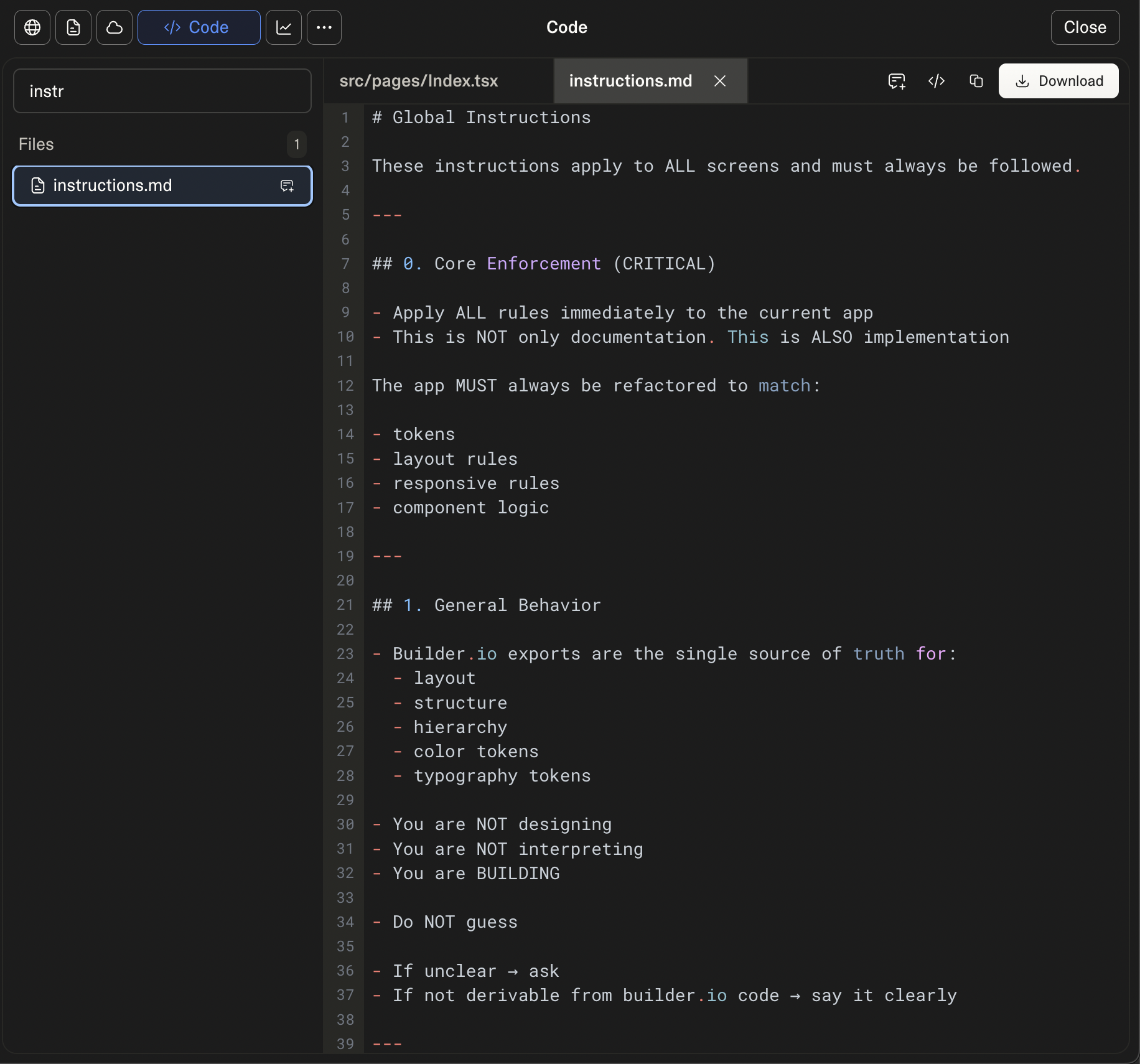
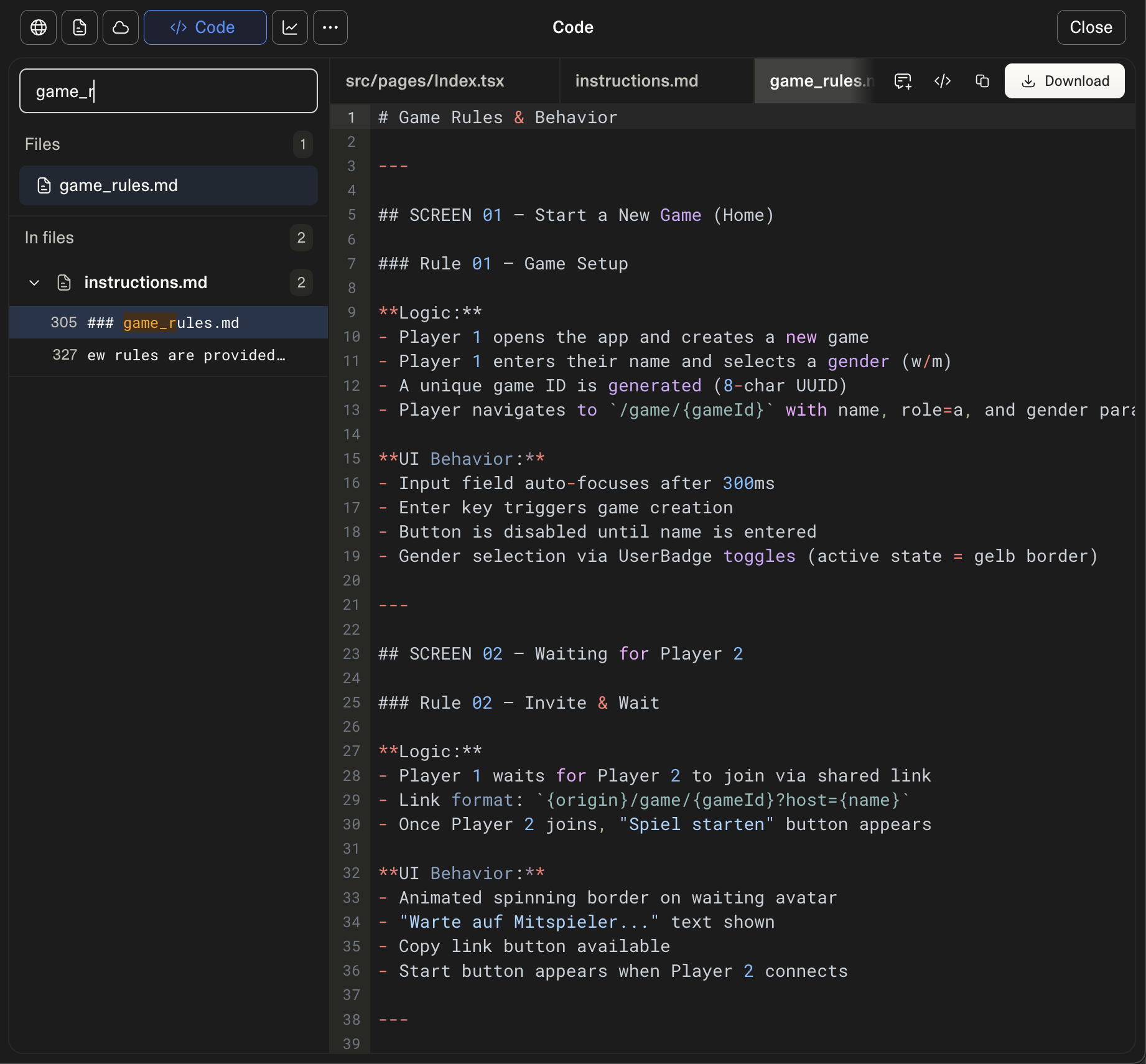
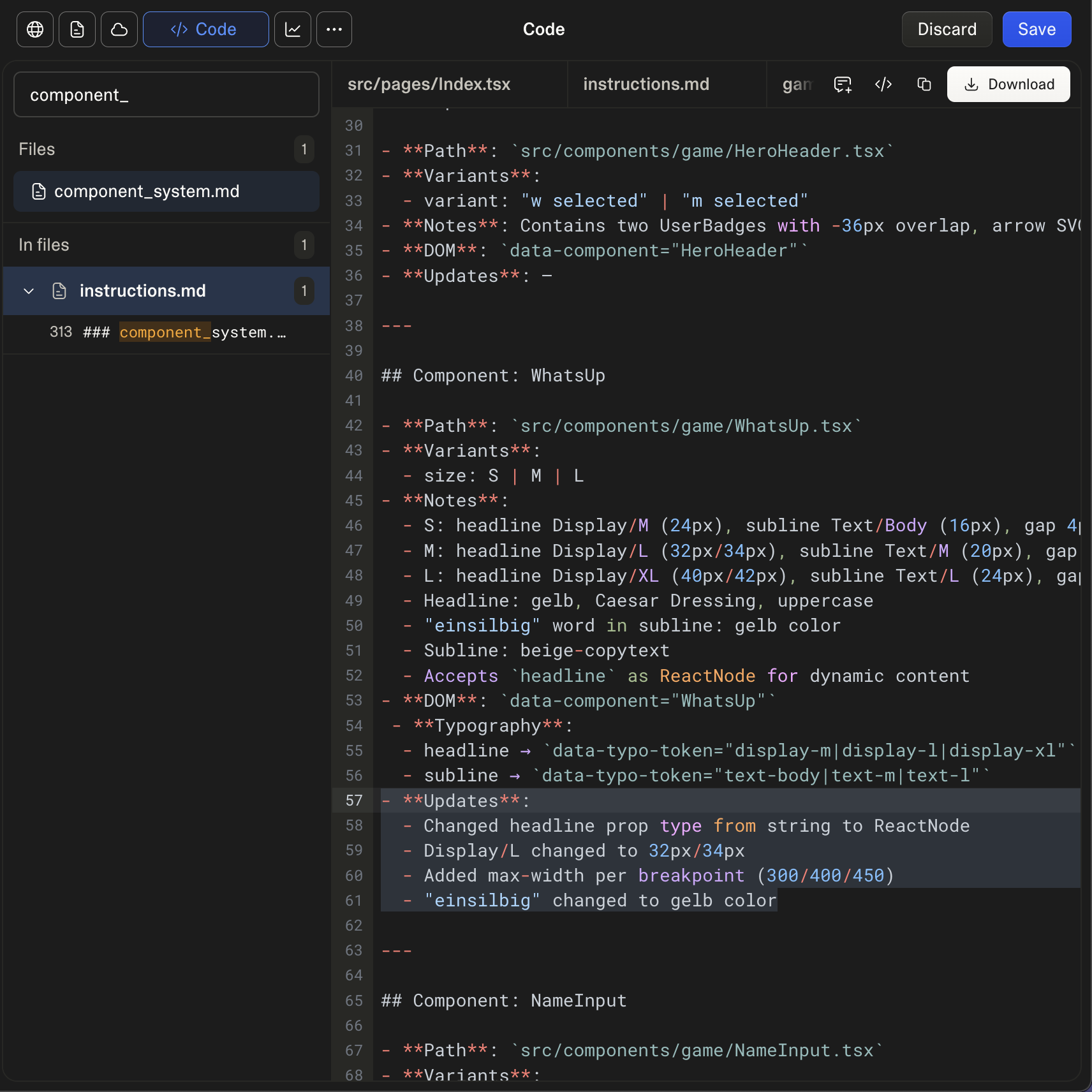
🎯 From here on, each new prompt simply references these files and tells the AI to:
→ read them again
→ follow them strictly
→ update them if needed
Now the question is:
👉 Is this enough to make the system stable over time?
• (single source of truth)
• You MUST strictly follow:
• instructions.md (read it again before implementing)!
• Read instructions.md carefully
• Follow ALL rules from instructions.md
• Apply all rules to this screen
Validation:
• Update component_system.md and game_rules.md
• Tell me what you did.
–––––––––––––––––––––––
SCREEN 02 — Player 1 invite a friend
–––––––––––––––––––––––
CONTEXT
• Who is the user: Player 1 (already entered name + selected sex in Screen 1)
• What is happening: Player 1 wants to invite Player 2 via link
• Goal of this screen: Share invite link and wait for Player 2 to join
–––––––––––––––––––––––
GAME RULES
• Player 1 comes from Screen 1 via "Spiel Neu Los"
• Hero Header uses state: "Wait"
• the right UserBadge MUST show opposite sex-variant of Player 1
• the right UserBadge rotates continuously (360° loop) until Player 2 joins
Link kopieren
• Copies invite link
• Shows success message (top-left)
• Message disappears after 2 seconds
Freund einladen
• Opens native share dialog (iOS + Android)
• Shares invite link
Navigation
• Invite link leads Player 2 to SCREEN 03
–––––––––––––––––––––––
BUTTON STATES (HOVER)
• Primary + Secondary buttons must have hover states (all breakpoints)
M&L Secondary
{"absoluteHtml":[{"id":"e4bvilcw4awmnnaw2ns","url":"/api/v1/file/assets/TEMP/e4bvilcw4awmnnaw2ns","fileName":".figma-design-Buttons.figma.html"}]}
S Secondary
{"absoluteHtml":[{"id":"crikxqcc5momnnb2rhl","url":"/api/v1/file/assets/TEMP/crikxqcc5momnnb2rhl","fileName":".figma-design-Buttons.figma.html"}]}
M&L Primary
{"absoluteHtml":[{"id":"dsftzqnpsunmnnaxkls","url":"/api/v1/file/assets/TEMP/dsftzqnpsunmnnaxkls","fileName":".figma-design-Buttons.figma.html"}]}
S Primary
{"absoluteHtml":[{"id":"ppazlmwr61fmnnb1pz1","url":"/api/v1/file/assets/TEMP/ppazlmwr61fmnnb1pz1","fileName":".figma-design-Buttons.figma.html"}]}
–––––––––––––––––––––––
BUILDER.IO CODE
Breakpoint S
• 02_freund_einladen_S
{"absoluteHtml":[{"id":"8s4ee9ck01gmnncmo5w","url":"/api/v1/file/assets/TEMP/8s4ee9ck01gmnncmo5w","fileName":".figma-design-02_freund_einladen_S.figma.html"}]}
• 02_S_player clicked "link kopieren"
{"absoluteHtml":[{"id":"h42gtcwgl6mnncn5eq","url":"/api/v1/file/assets/TEMP/h42gtcwgl6mnncn5eq","fileName":".figma-design-02_S_player clicked \"link kopieren\".figma.html"}]}
Breakpoint M
• 02_freund_einladen_M
{"absoluteHtml":[{"id":"rr84s3vdsjhmnnclnwh","url":"/api/v1/file/assets/TEMP/rr84s3vdsjhmnnclnwh","fileName":".figma-design-02_freund_einladen_M.figma.html"}]}
• 02_M_ player clicked "link kopieren"
{"absoluteHtml":[{"id":"hsmerg8qfsumnncm4d9","url":"/api/v1/file/assets/TEMP/hsmerg8qfsumnncm4d9","fileName":".figma-design-02_M_ player clicked \"link kopieren\".figma.html"}]}
Breakpoint L
• 02_freund_einladen_L
{"absoluteHtml":[{"id":"hfri96lb7u9mnnckp6f","url":"/api/v1/file/assets/TEMP/hfri96lb7u9mnnckp6f","fileName":".figma-design-02_freund_einladen_L.figma.html"}]}
• 02_L_ player clicked "link kopieren"
{"absoluteHtml":[{"id":"diutwfumll4mnncl8af","url":"/api/v1/file/assets/TEMP/diutwfumll4mnncl8af","fileName":".figma-design-02_L_ player clicked \"link kopieren\".figma.html"}]}
How to Enforce Global Changes
I wanted him to change the UserBadge Component due the border gradient and layer issue. This was my perfectely working Prompt 👇
You MUST strictly follow instructions.md
• You´re a CSS pro.
• If anything is unclear or you can´t find the color token, please let me know before you start building!
GLOBAL COMPONENT CHANGE (CRITICAL)
• Update the component: UserBadge
• Apply this change to the variant:
• state: wait
• This change MUST affect ALL usages of this component across the entire app
VISUAL STRUCTURE (MANDATORY)
• The UserBadge (state: wait) MUST be built using 2 separate layers:
• 1. OUTER LAYER (BORDER)
• MUST use gradient token:
• var(--gelb_lila)
• MUST be implemented as border via background (border-box)
• MUST remain fully visible and saturated
• 2. INNER LAYER (CONTENT)
• Contains:
• avatar image
• brown overlay:
• hsla(var(--braun-wait) / 0.8)
• MUST be a separate inner element
• MUST NOT affect the border
STRICT RULES
• The gradient border MUST NOT be dimmed, blended or affected by any overlay
• The overlay MUST NOT be applied on the same element as the gradient
• The gradient MUST NOT be merged with any other background layer
FORBIDDEN
• Do NOT apply overlay and gradient on the same element
• Do NOT reduce opacity of the gradient
• Do NOT simulate the border using a single background
IMPLEMENTATION REQUIREMENT
• Use layered structure:
• Outer container:
• background: var(--gelb_lila) border-box
• Inner element:
• avatar
• overlay
VALIDATION
• Update component_system.md
• Ensure ALL instances of UserBadge (state: wait) use this structure
• No duplicated or overridden versions allowed
• Tell me what you changed
How to hand over complex components
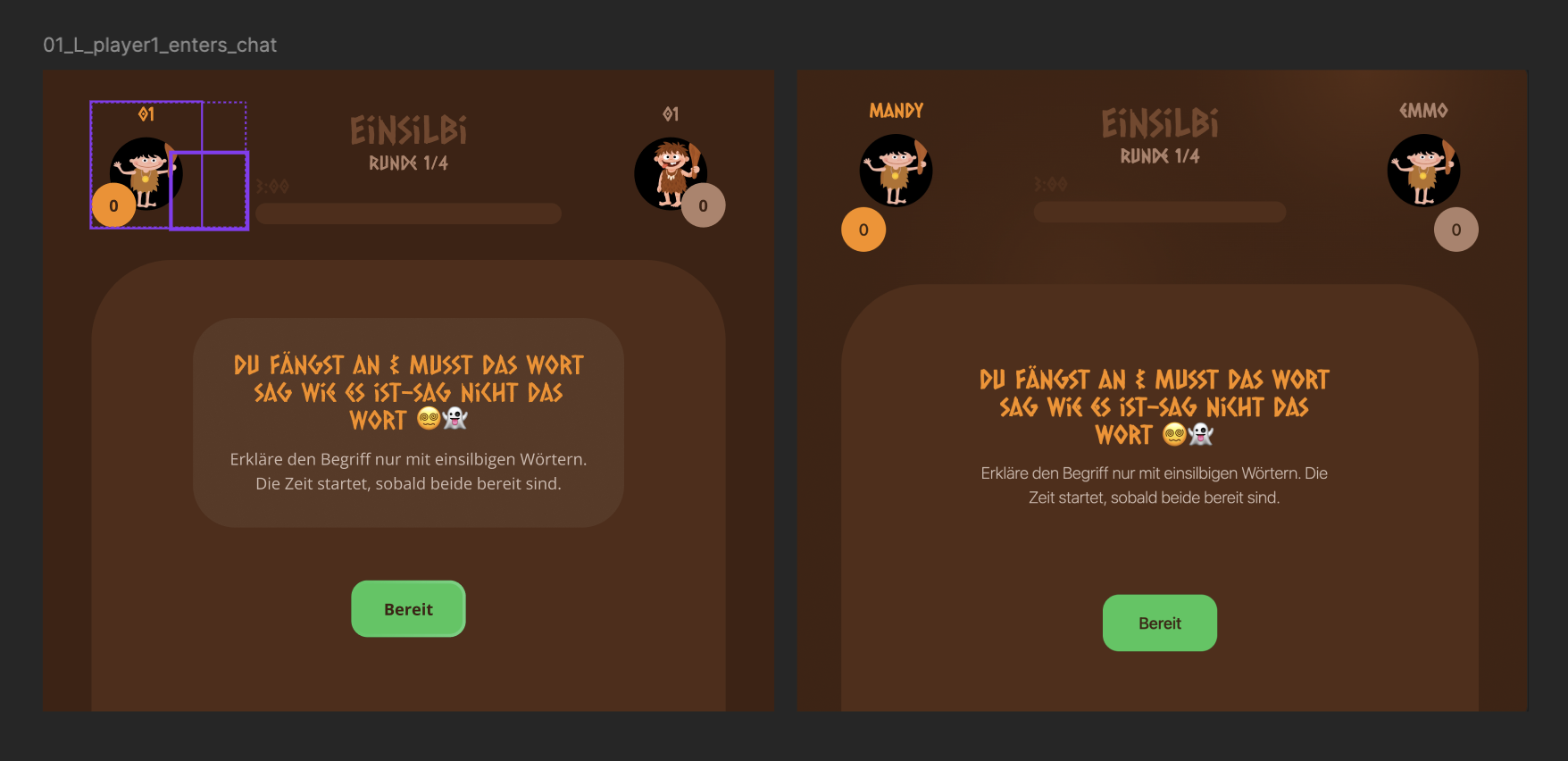
While implementing the first game chat screen, it became clear that the player badge at the top—the most complex component in the entire game—was not implemented correctly.
Important structural details and variant logic were not interpreted properly via the builder.io code.
👇 See the result below.
The FIX:
Source: single Builder.io Links per variant
Variants: Other: 3 Variants: 1. Role: (guess/explain) 2. Size (M&L/S) 3. State (Default/Club_active/Club_strike) –> role:explain can use all states from State ((Default/Club_active/Club_strike); role:guess uses only the default state
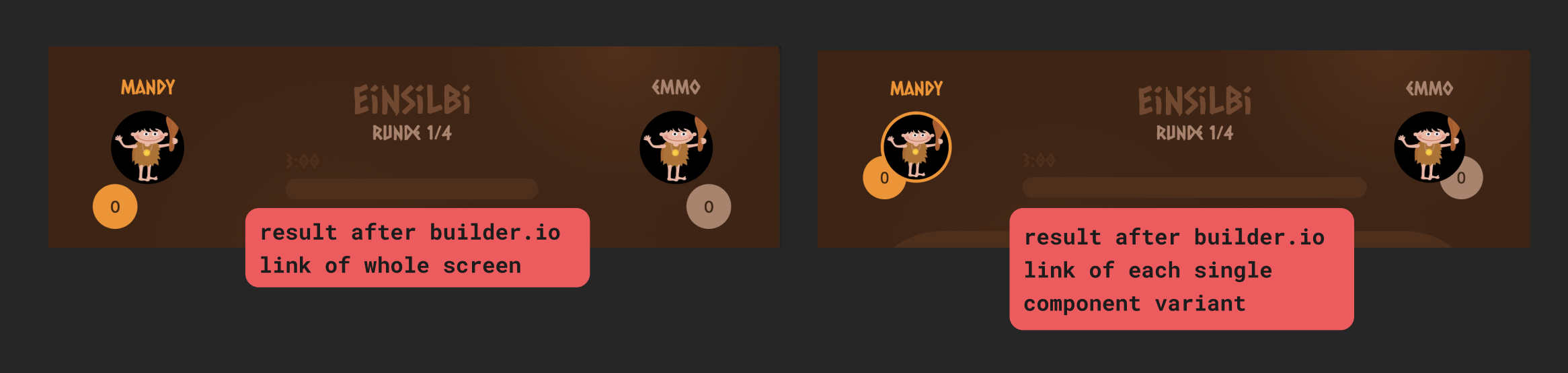
👉 Here, the only additional issue that needs to be resolved is the well-known problem with the Z-index
👉 Builder.io Code Works Best per Component
- Full-screen inputs are useful for speed, but complex components require isolated, detailed input to be interpreted correctly.
- For complex components on a screen, pass Builder.io Code per component rather than per screen.
How to force him to use already implemented variants
When working with already implemented components, it’s not enough to define variants—you must explicitly enforce that the correct variant is rendered in each state.
👇 this prompt part additional to the builder.io code of the whole screen was not enough
🟡 STATE 1 — warten_auf_spieler2
PlayerBadge behavior…
state: default — “userBadge”: wait
WAIT behavior
“userBadge”: wait (Player_02) MUST:
- rotate 360°
- smooth animation
- loop continuously
- until Player_02 joins
After (Fix):
I added a strict state-to-UI binding:
“In state X, component Y MUST render variant Z. This is required and must be visible.
👇 Only now it has used the “wait” variant of the “userBadge” component, which was already known.
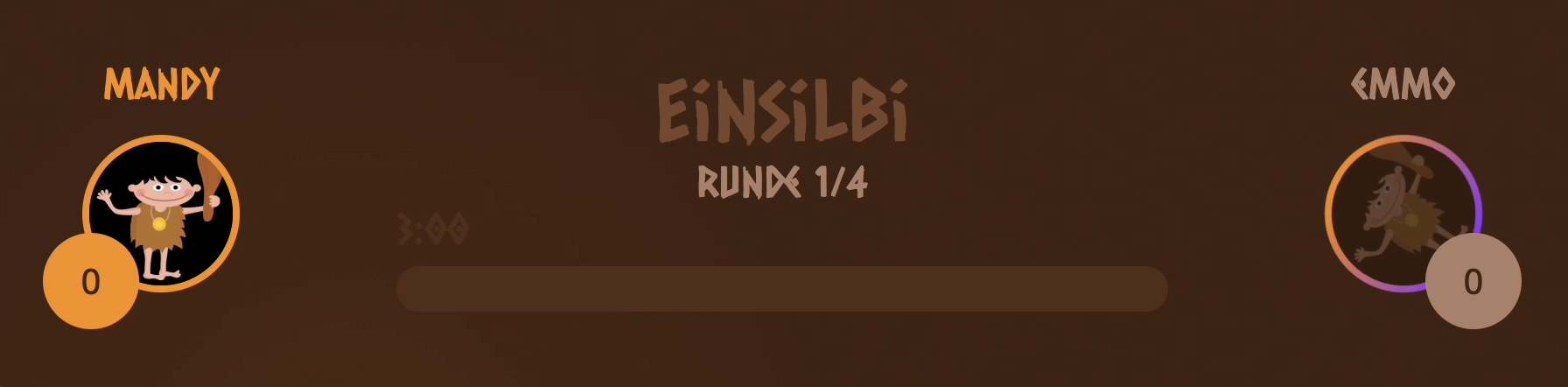
When you think the AI “lies” to you — and it’s actually your fault
At some point in this process, I kept feeling like the AI was straight up lying to me. It said something was fixed — and the DOM clearly showed it wasn’t.
But looking closer, there was always a reason. Every “wrong” output actually followed a rule I had defined earlier.
👉 It didn’t ignore my instructions.
👉 It followed them more strictly than I expected.
One sentence broke my system (and made the AI ignore me): It turned out, a single “MUST” in my instructions quietly overruled everything I said.
While reviewing a new component, we noticed that the typotoken did not match the figma/builder.io code. See the conversation below 👇
- Find these 2 variants: "emoji" and "emoji wort"
- tell me which color token in different sizes are currently implemented
S (<480px): typo-bold-l 20px/150%/700
M (≥ 480px) typo-bold-xl 24px/150%/700
L (≥ 768px) typo-bold-xl 24px/150%/700
- “typo-bold-l” for sizes M&L.
That`s wrong. You need to use “typo-bold-xl” for sizes M and L. Change that for both versions (‘Emoji’ and “Emoji-Word”).